Settings & reference lists
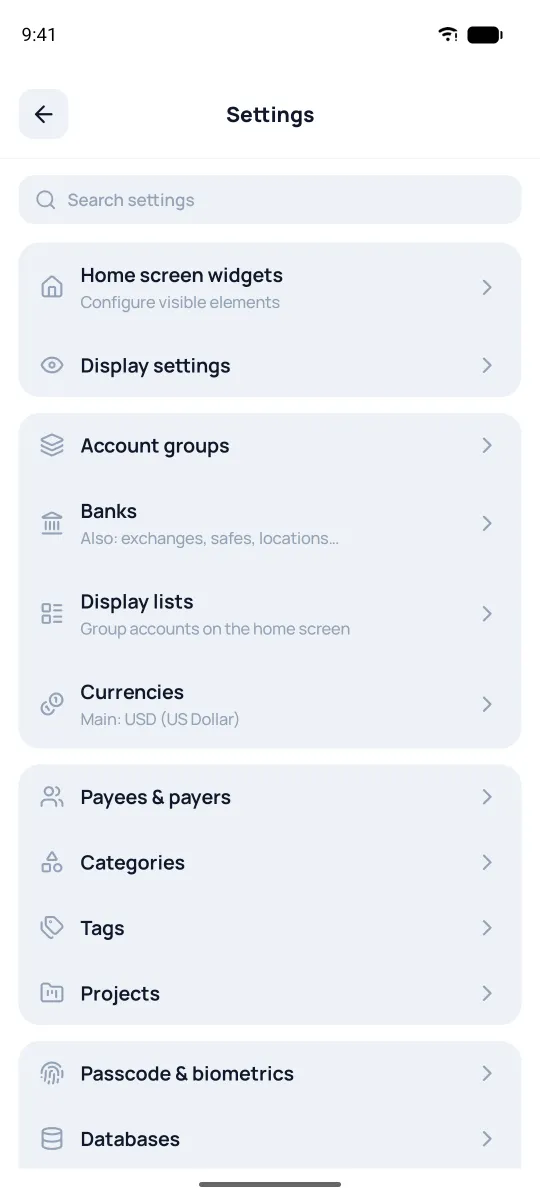
Besides tuning the app (look, language, main currency), Settings is where you set up the things that describe your transactions and accounts: currencies, income and spending categories, payees, projects, tags, banks.
At the very bottom of Settings are two buttons. "Load demo database" replaces the current database's data with a ready-made example so you can look around the app. "Delete database data" wipes only the current database — your other databases and app settings stay.
Reference lists
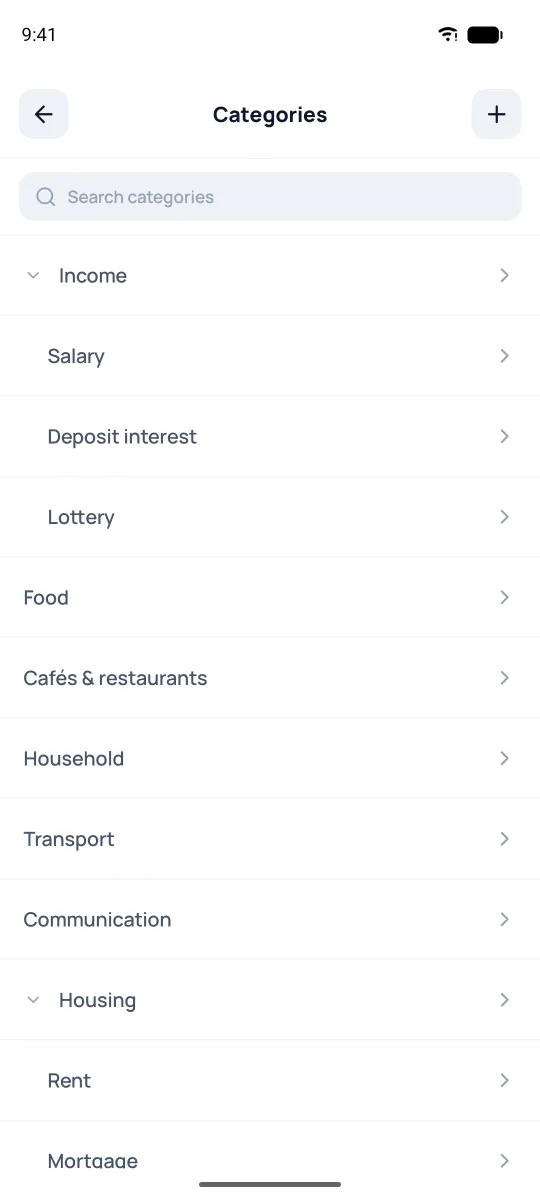
- Categories of income and expenses (Food, Transport, Housing, Work, Business income). They can nest, like "Housing → Rent, Mortgage".
- Payees & payers — not necessarily specific people, companies, or store names. This is where you jot down what the money went on: shoes, groceries, a plane ticket, building materials, Netflix, a café, a tire change, the cleaner's pay; where it came from: salary, a lottery win, a client payment, a repaid loan; or how it moved between accounts: ATM, top-up to savings, a currency exchange.
- Projects — group spending by occasion: "Vacation", "Remodel", "Business", "Business / Client65", "Travel / Mexico". These nest too.
- Tags — colorful labels with a caption that you can tag your transactions with.
- Banks — plus exchanges, wallets, and safes. Accounts hang off a bank. A safe at home counts as a "bank" too — it's basically the "where my money sits" thing.
- Account groups — bundle accounts so you can see their combined balance.
- Currencies and Display lists live in their own sections (see the "Currencies" and "Account list" sections).
Basically, these three independent layers — Categories, Projects, Tags — let you cross-link your transactions in a fine-grained way, so down the line you get sharper reports on how your money flows, which makes it a whole lot easier to optimize.
You can set all this up here ahead of time — or just make it on the fly from the transaction form (see Getting started).
Changing theme and language
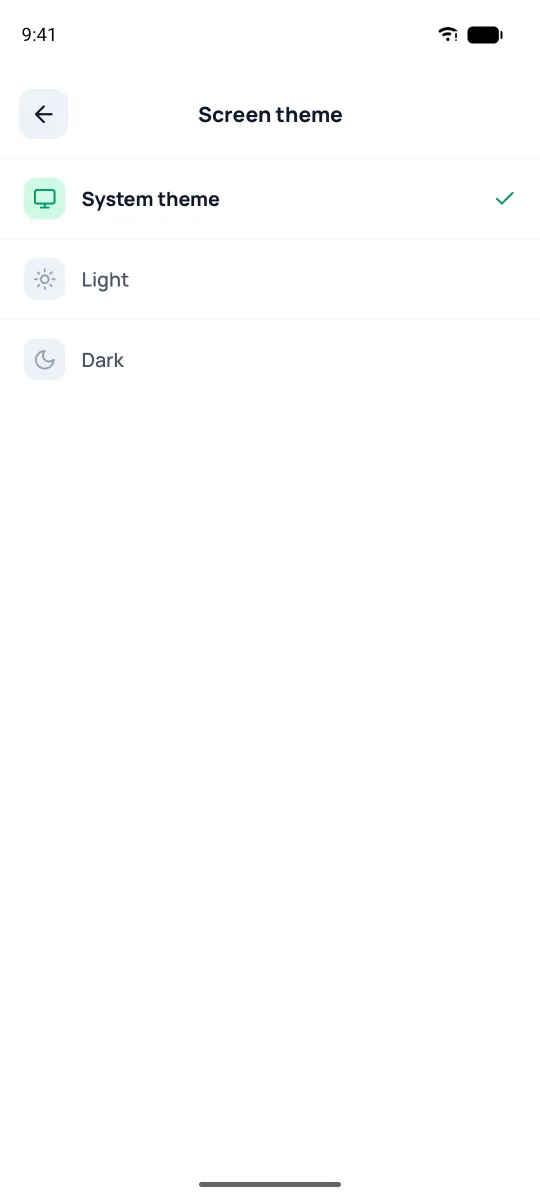
If you want the app's theme to always be dark or light, pick it at the bottom of Settings, under "Screen theme". The app language is picked under "Language" and doesn't depend on the device language: check the one you need and save (the icon top-right). Confirm — and the interface switches over.
Display settings
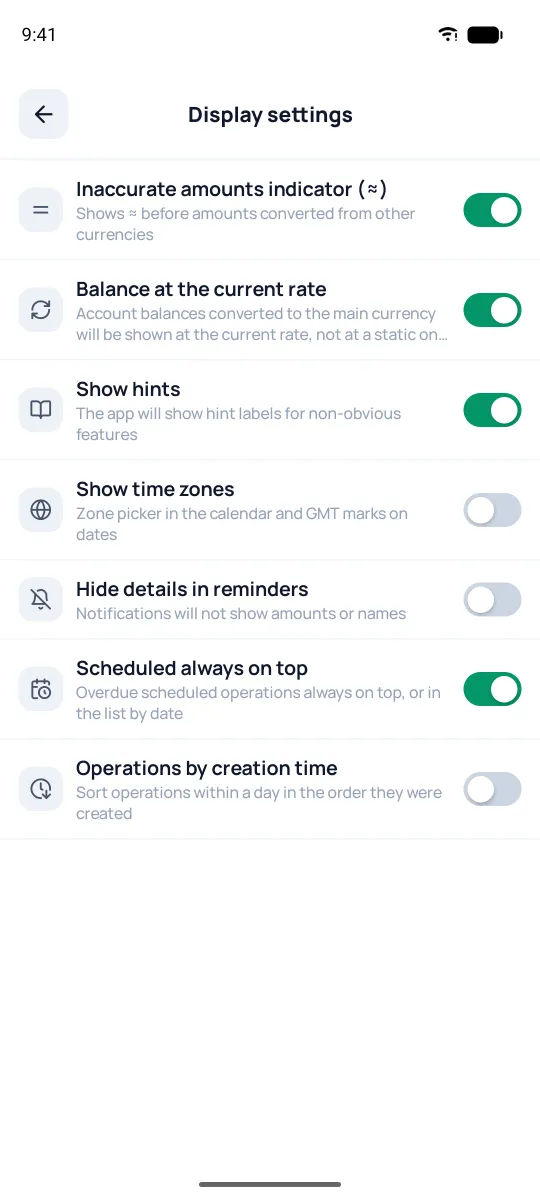
Settings → Display settings is seven toggles: how Pigles shows amounts, dates and the transaction feed. Turn on whatever works for you.
- Inaccurate amounts indicator (≈) — puts ≈ before amounts converted from other currencies at a rate.
- Balance at the current rate — account balances in the main currency are converted at the current rate, not your manual one (see the "Currencies" section).
- Show hints — short explanations where a button's purpose isn't obvious.
- Show time zones — a zone picker in the calendar and GMT marks next to dates.
- Hide details in reminders — a reminder about a scheduled transaction comes without the amount and name.
- Scheduled always on top — scheduled transactions sit at the very top of the feed instead of under their dates.
- Operations by creation time — within a day, transactions go by the moment they were entered: the last one entered is higher.