Your accounts
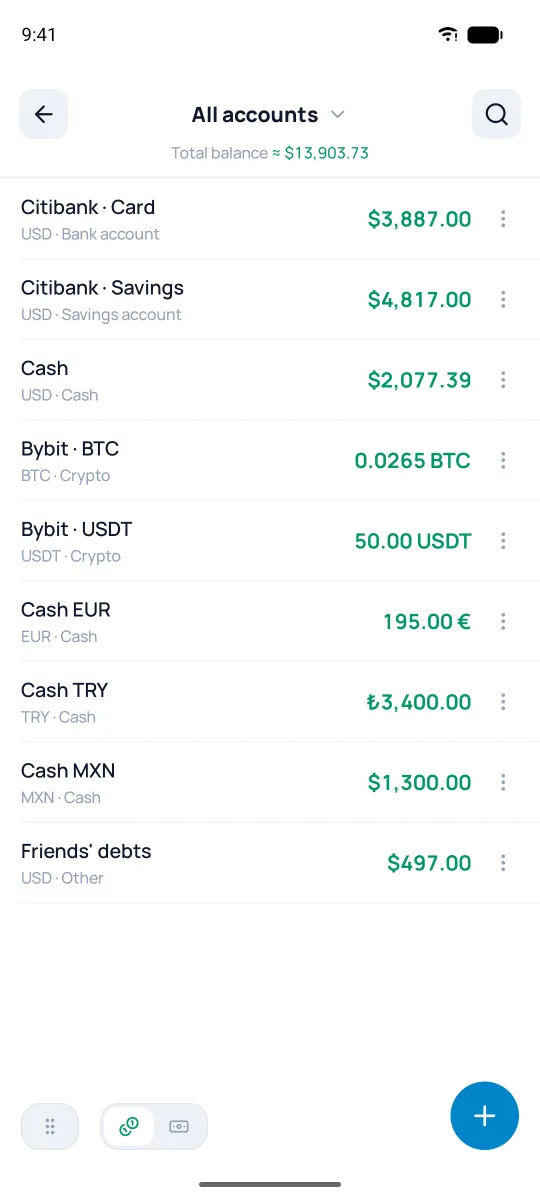
The "Accounts" screen shows your open accounts and your total balance. You can arrange them however works for you. Tapping the "Total balance" row opens all transactions.
Group them your way
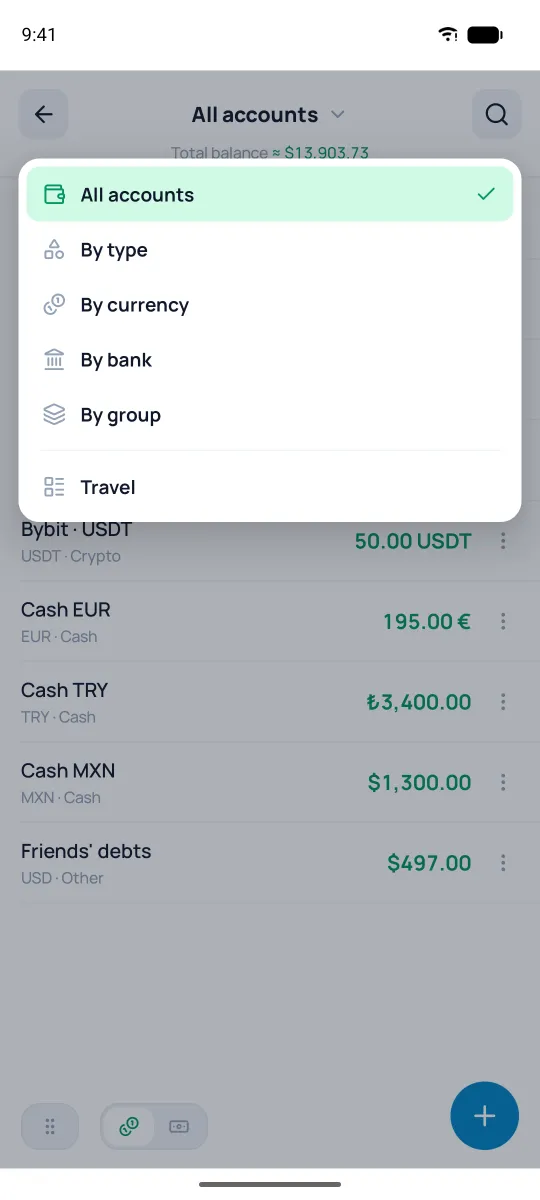
Tap the header up top (the little ▾ arrow) and pick a view: "All accounts", "By type", "By currency", "By bank" or "By group". Below are your lists and "Closed accounts", if you have any. "By bank" and "By group" show up once an account has a bank or a group.
In the "By type", "By currency", "By bank" and "By group" views, accounts are gathered into blocks. Tapping a header collapses the block. Each view keeps its own account order. In the "All accounts" and "By currency" views and in your own lists, there's a toggle in the bottom-left corner next to ⋮⋮: left — amounts in each account's currency, right — everything in the main currency (see the "Currencies" section). In the "By group" view, an account that's in two groups shows under each. "Total balance" counts closed accounts too, so it may not match the sum of the rows on screen.
Your own display lists
A display list is your personal set of accounts and groups under one name — say, "Travel". It shows up in that same view menu. To make one: + → "New display list". Edit or delete one in Settings → Display lists.
Account actions
The ⋮ icon on an account — or a long press on it — opens its actions: "Edit" and "Close". In the "By bank" and "By group" views there's also "Disconnect from bank" and "Remove from group"; the account itself isn't deleted. A closed account hides from the main lists, but its whole history and its part in your balance stick around. Reopen it anytime from the "Closed accounts" view.
Minimum balance and credit card
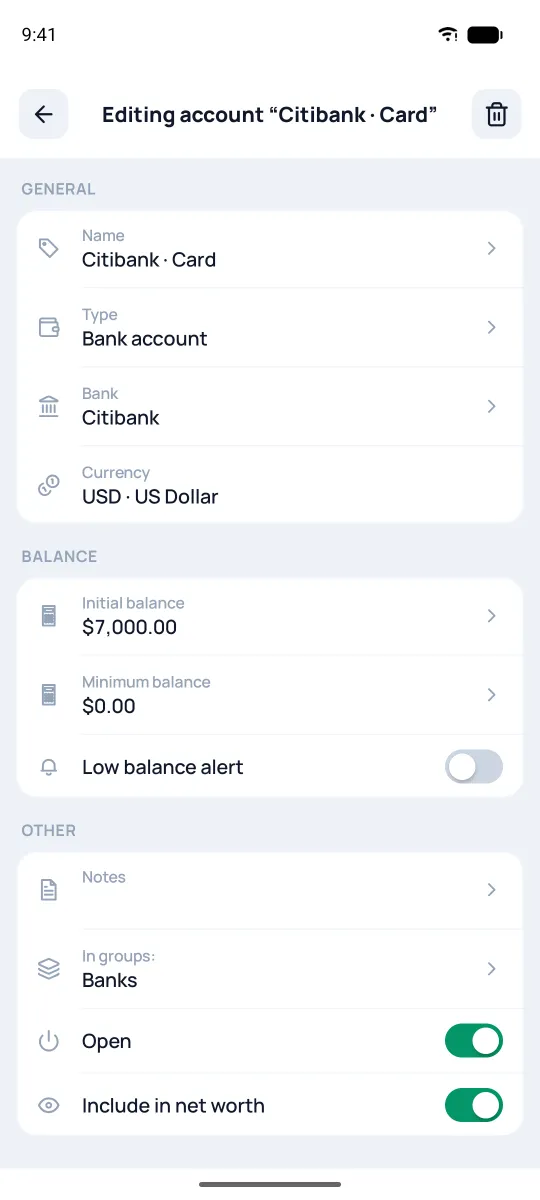
Want to always keep a cushion on an account? Set a threshold — and Pigles will warn you when the balance drops below it.
- Open the account form: ⋮ on the account → "Edit".
- Enter the "Minimum balance" — the balance you'd rather not drop below.
- Turn on "Low balance alert" — and when a transaction takes the balance down to the threshold or below, the app shows a warning.
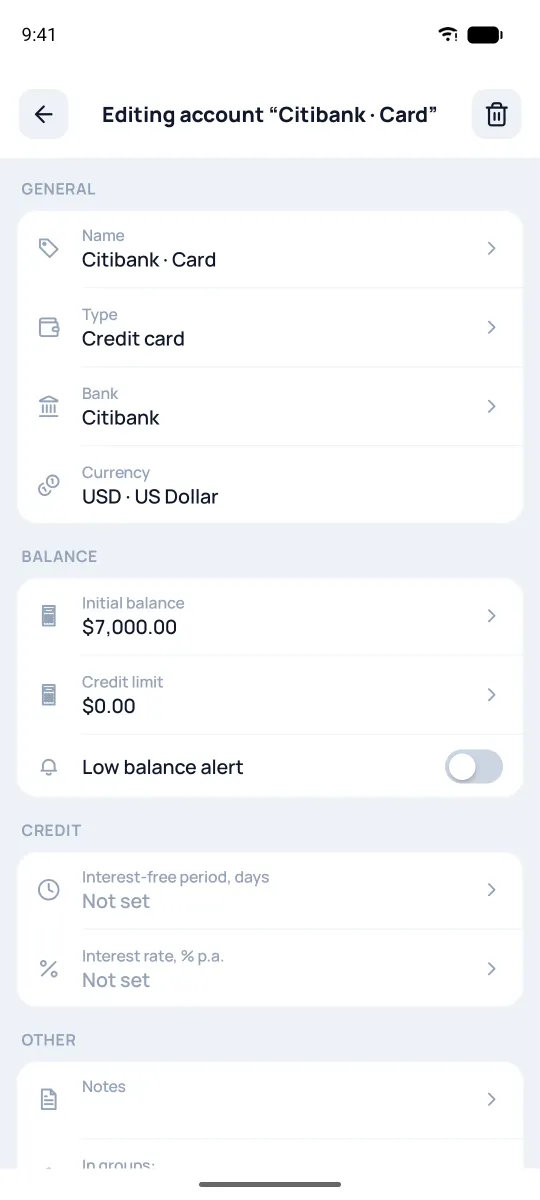
If you pick "Credit card" in the "Type" field, "Credit limit" appears instead of the minimum balance, and below it the "Credit" block: the interest-free period in days and the rate. The "Loans" widget on the home screen shows how much of the limit is left (see the "Widgets" section).