Home screen widgets
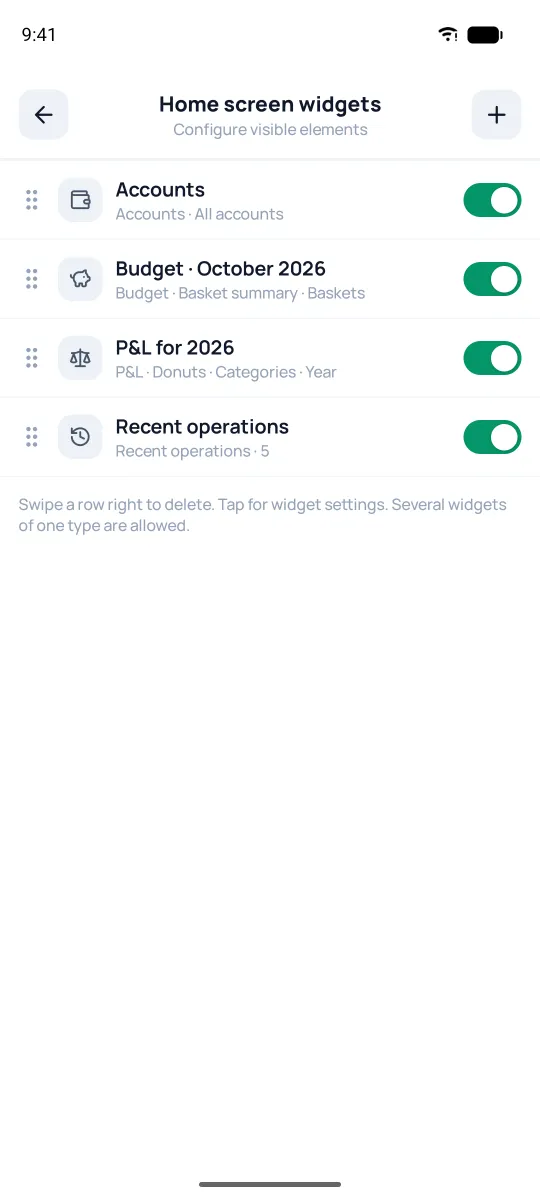
Your home screen is a stack of widget blocks that you build to fit you. You can drop in the same type more than once, each with its own settings, so the screen shows exactly what matters to you: accounts, budget, income and expenses, recent operations. Tapping a widget opens its section, and the actual setup lives in the settings menu.
Where to set it up
Open Settings → Home screen widgets. The toggle on the right turns a widget on or off, tapping a row opens its settings, and swiping a row right reveals a delete icon — tapping it deletes the widget, and there's no undo. A widget you don't need is better turned off with the toggle: its settings stay. To reorder, grab a row by the ⋮⋮ handle and drag it up or down.
Add a widget
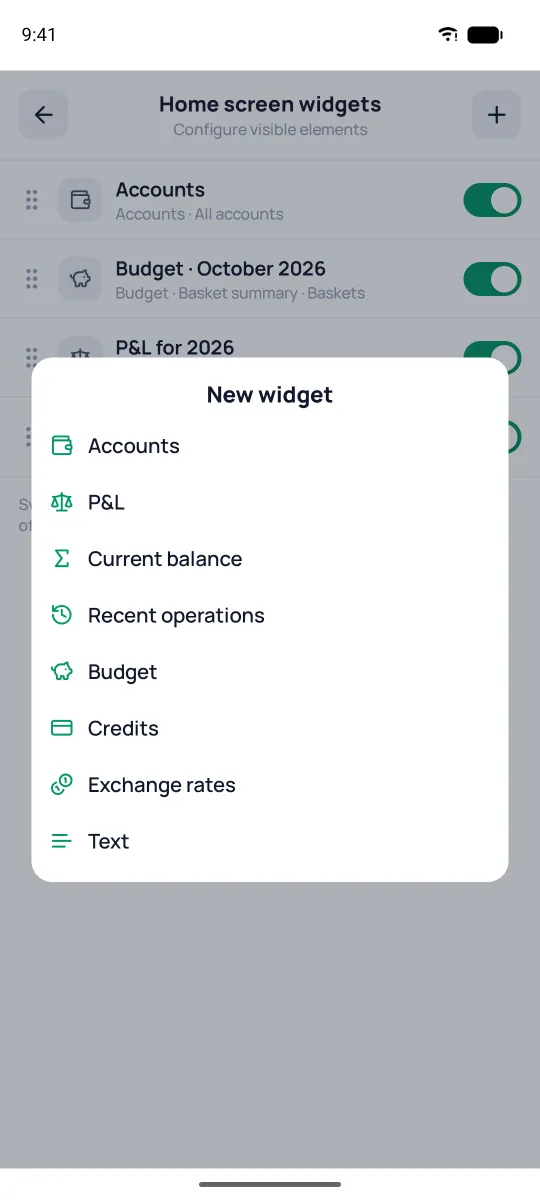
The + button up top opens the list of types. Each one has its own settings, and the editor always shows a live preview — "Here's how it'll look". In the title of "P&L" and "Text" you can insert "{month}" and "{year}", and "P&L" also takes "{period}" — Pigles fills them in itself. To remove the title, open the field and clear the text. There's no save button here — everything saves on its own when you leave. The tap-to-open can be turned off — the "Widget works as a link" toggle.
- Accounts — a list of accounts with balances. You can narrow the source: all, by type, by currency, by bank, by group, or your own display list.
- P&L — income and expenses for the month or year: a pair of donuts or bars; for donuts, your choice of breakdown (Names / Categories / Projects); its own filter — the same one as in reports.
- Current balance — one to four big tiles with totals for the accounts and groups you pick. Each tile gets its own label and currency, and the color is one for the whole widget. You can leave the accounts unselected — then the tile takes every account that counts toward the total.
- Recent operations — a few of your latest entries with a ⧉ button: tap to create a copy of the transaction, long press to open it for editing.
- Budget — how your budgets are doing for the month, quarter or year: a basket summary or rings.
- Loans — for credit cards, the limit and available balance; for loans, the next payment.
- Exchange rates — the currency pairs you pick; the ⟳ button updates the rates.
- Text — your own heading or a divider line, to break the stack into sections.