Import from other apps
Moving to Pigles from another app? No need to retype everything — bring your history over from a backup. Accounts, categories, operations, and currencies all get rebuilt automatically.
What's supported
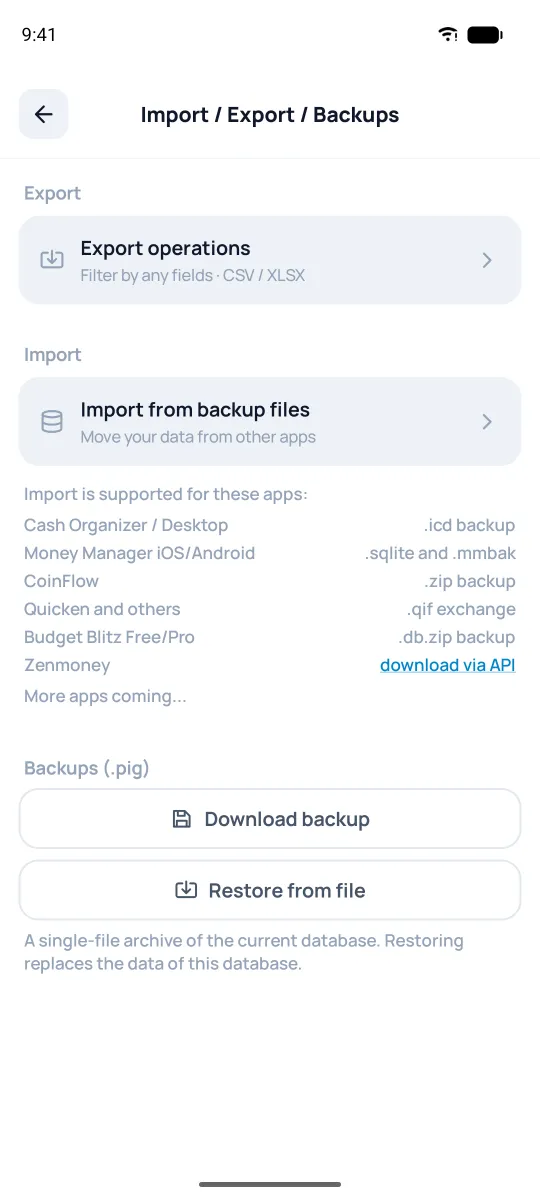
- Cash Organizer / Desktop — .icd backup
- Money Manager — .mmbak files (iOS) and money*.sqlite (Android)
- CoinFlow — .zip backup
- Quicken and others — .qif exchange file. It has its own steps: the app will ask whether to Add to the current database or Replace the whole database.
- Budget Blitz Free/Pro — .db.zip backup; the Pro one can come with a password.
- Zenmoney — no file needed: tap download via API, enter your Zenmoney API key — and your history loads in. Only into a local database, not a cloud one.
More apps coming.
How to bring your data in
Import is only available in the phone app; the web version doesn't have it.
- In your old app, make a backup and save the file to your phone.
- In Pigles, open Settings → Import/Export/Backups → Import from backup files and pick the file.
- The app detects the format from the file name and checks the contents. If the format is unfamiliar, it'll ask you to pick it yourself.
- Before loading, the app will offer to save a copy of your current database; if you already have entries in Pigles, don't say no. If the archive has a password, the app will ask for it.
- Next comes the Account currencies screen, more on it below. Tap Import — and your data loads in.
Account currencies
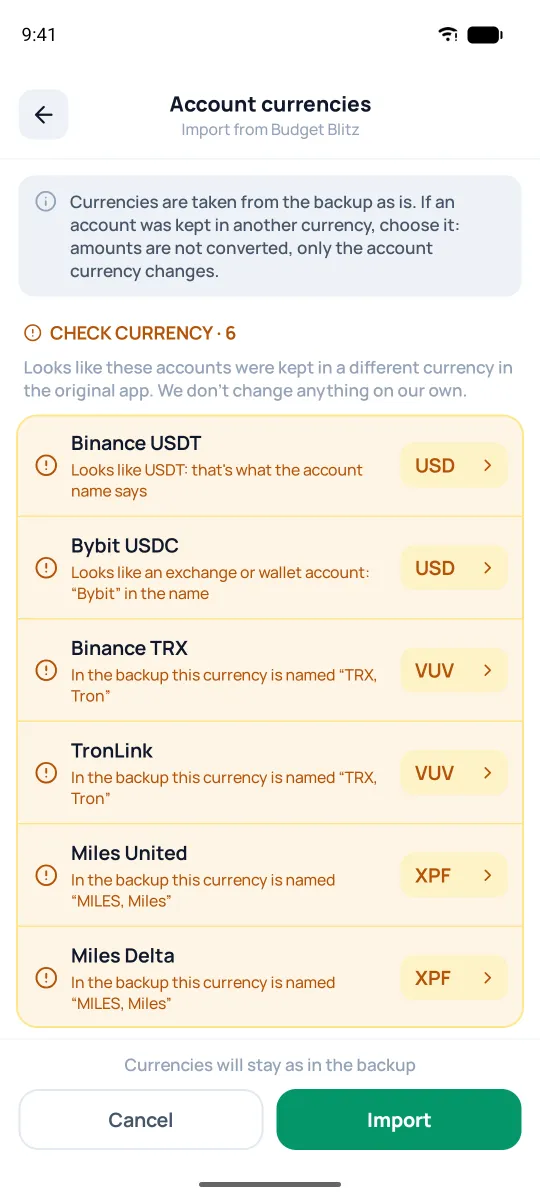
Before loading, the app shows the accounts from the backup and their currencies. Accounts whose currency it isn't sure about are gathered in the Check the currency block with a yellow hint — for example, exchange accounts, crypto wallets, and bonus miles. The hint explains why: for example, "Looks like USDT: that's what the account name says". If you really did keep the account in that currency, pick it; if not, leave it as is. If there are no such accounts in the backup, the block won't appear: just tap Import — and the currencies stay as they were.
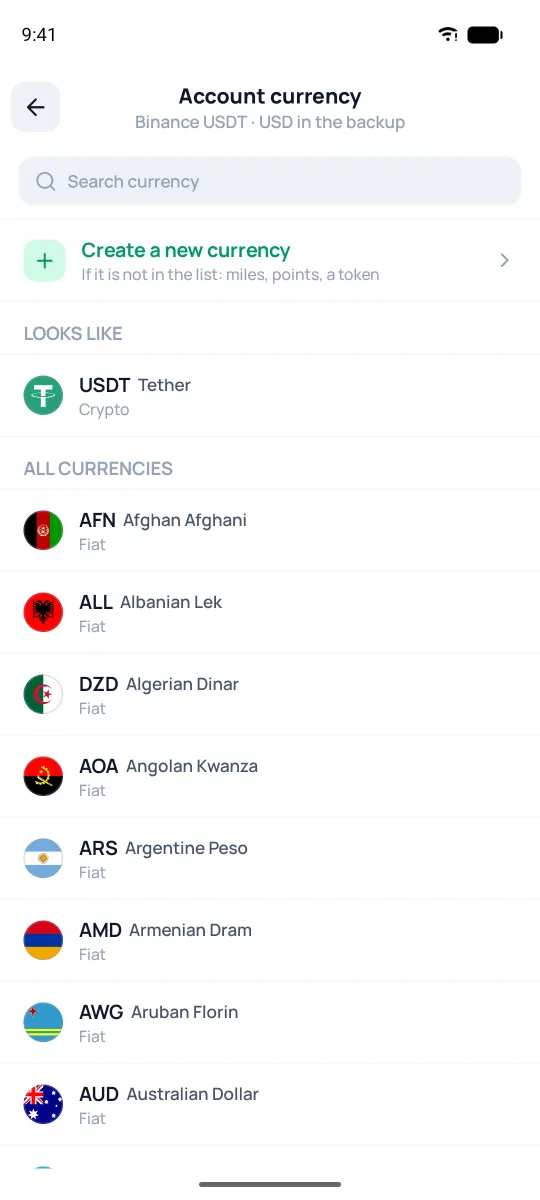
Tapping an account opens the currency picker; if the one you need isn't in the list, tap Create a new currency — that's how you can set up miles or points. If there are several similar accounts, the app will ask whether to change the currency for all of them or just this one. Once you've changed something, the bottom of the screen shows how many accounts will get a new currency. Amounts aren't recalculated — only the account's currency changes. Changed your mind — Cancel, and the database stays as it was.