Backups & moving devices
All your Pigles data lives on your device (and on the phone it's encrypted). So you don't lose it if your phone breaks or you switch, make a backup: the system's own tools don't carry Pigles data over to a new phone. The backup file is in Settings → Import/Export/Backups, at the bottom of the screen; the cloud database is in Settings → Databases.
Cloud database
There's no separate cloud backup in Pigles — there's a cloud database: it lives in the cloud, and Pigles itself keeps it identical on all your devices (with a subscription; see the "Databases, cloud & subscription" section). After a dozen or so recorded operations, the app will offer to connect the cloud on its own — you can answer "Later" or "Don’t ask again".
Password for the file
The app asks for a password when you download a backup — you can skip it. With a password, the file can only be restored with it, and the app can't remind you what it was — don't lose the password. Without one, anyone who gets hold of the file can open it — so it's better to set a password before sending it through a messenger.
File: download and restore
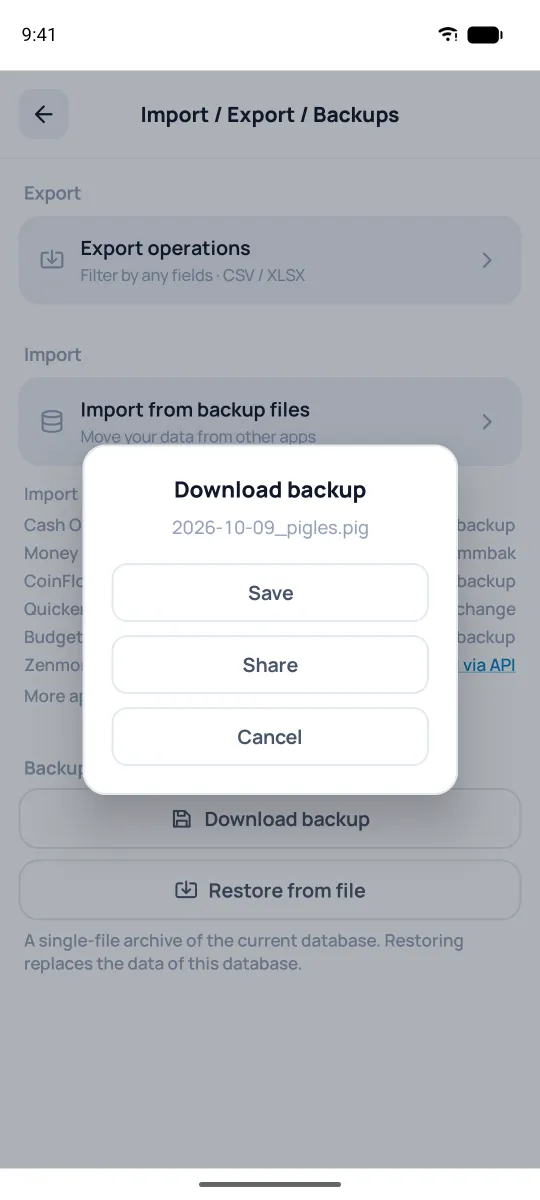
- Download backup — save a .pig file for yourself: "Save" — to a folder on your phone that you pick, "Share" — to a messenger or any cloud (the file gets a name like 2026-10-08_pigles.pig).
- Restore from file — load data from a .pig you saved earlier. It replaces the data in the current database, and for a cloud one — on your other devices too. If the database isn't a cloud one, it takes the file's name — rename it in "Databases" if you like.
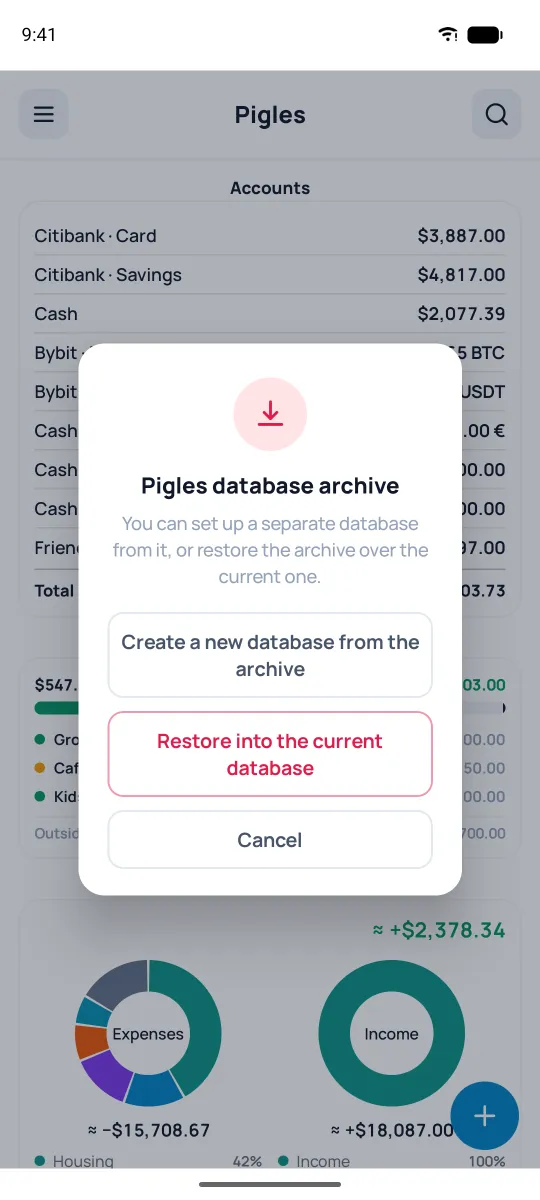
Open a .pig file from a messenger or from "Files" in Pigles — the app asks where to restore it. "Create a new database from the archive" is the safer option: the current database stays untouched. "Restore into the current database" replaces its data.
Moving to a new device
- On your old phone, download a backup as a file (a cloud database doesn't need one).
- On the new one, install Pigles.
- Open "Restore from file" and pick your .pig. A cloud database doesn't need restoring — connect the same cloud account, and the app will offer to open it.
The same works between Android and iPhone — the backup format is shared.