
Security: PIN & biometrics
Your finances are your business. Lock the way into the app with a PIN and Face ID or fingerprint so nobody else takes a peek. It's all in Settings → Passcode & biometrics. The data on your phone is already stored encrypted; the PIN is an extra lock on the door.
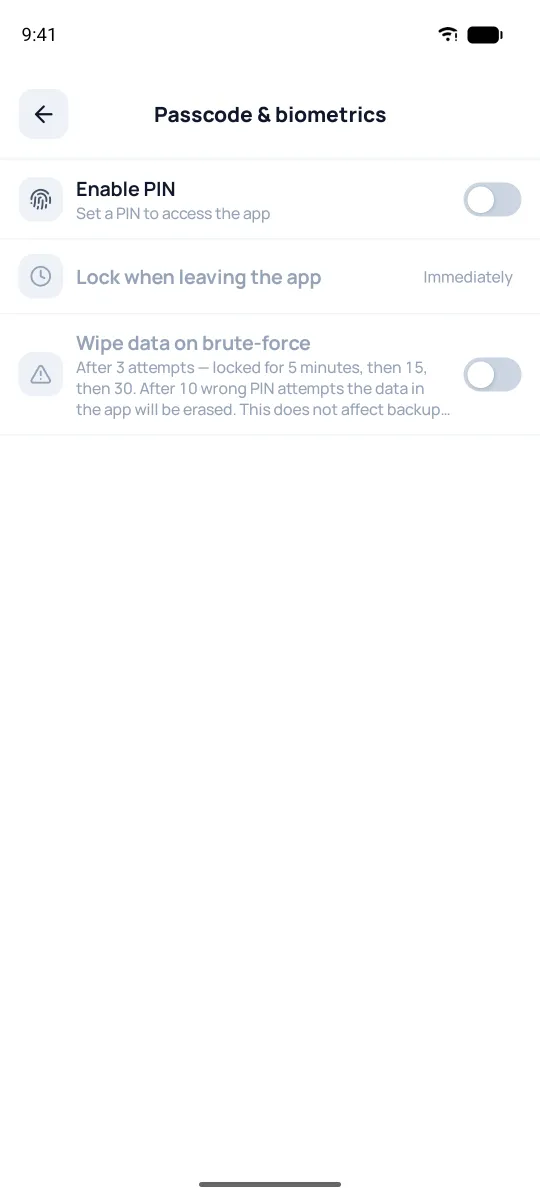
PIN and biometrics
Turn on "Enable PIN" and set a 4–8 digit code — the app will ask you to repeat it. After that, it offers to hook up face or fingerprint sign-in — way quicker than typing the code every time. If you've changed the fingerprints or face on your phone, the app asks for the PIN once — after that, biometrics work again.
The PIN is a phone setting, not a database one: it doesn't carry over with a backup or the cloud, each device has its own.
Lock when leaving the app
Pick when it asks again: right away when you leave, after 1 or 5 minutes, or only on a full launch. Shorter is safer, longer is comfier. Going out to "Share", picking a file, or signing into Google doesn't count as leaving — even with "Immediately".
A PIN for important actions
When the PIN is on, the app asks for it (or biometrics) on its own before risky actions, even if you're already signed in: "Delete database data"; "Load demo database"; "Download backup" and "Restore from file"; importing from other apps; opening "Passcode & biometrics"; "Delete without moving" for an account — when the operations are moved to another account, the app won't ask for the PIN.