
Databases, cloud & subscription
Keep your personal books separate from the family's or the business? Set up several databases: each has its own accounts, operations, and settings, and they don't overlap. Any database can be moved to the cloud — then it's the same one on all your devices. It's all in Settings → Databases.
Several databases
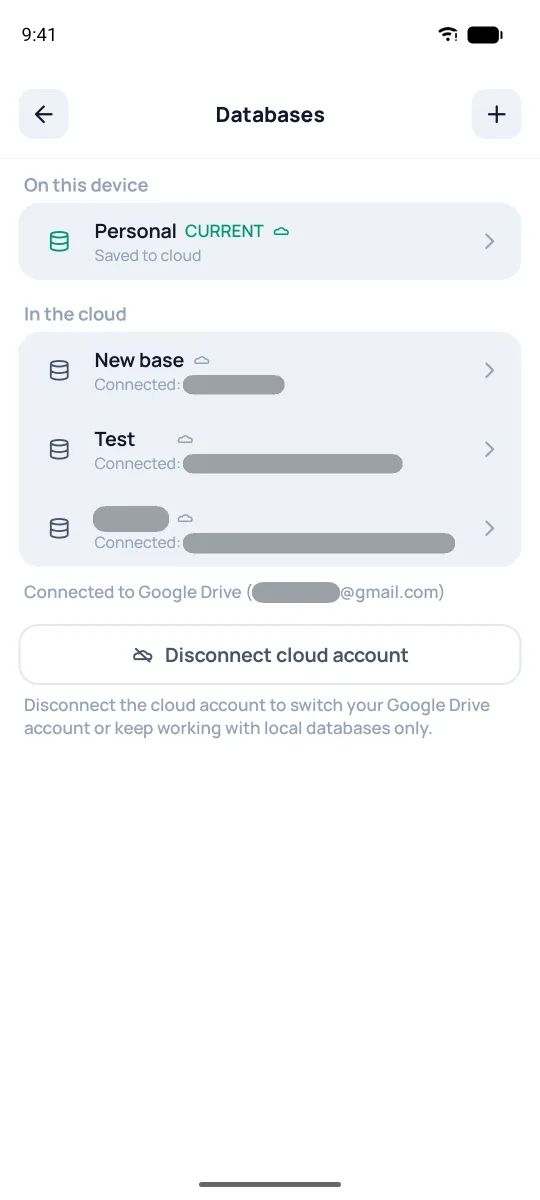
The screen shows databases in the "On this device" block; the open one is marked with the "CURRENT" badge. Once the cloud is connected, an "In the cloud" block appears below.
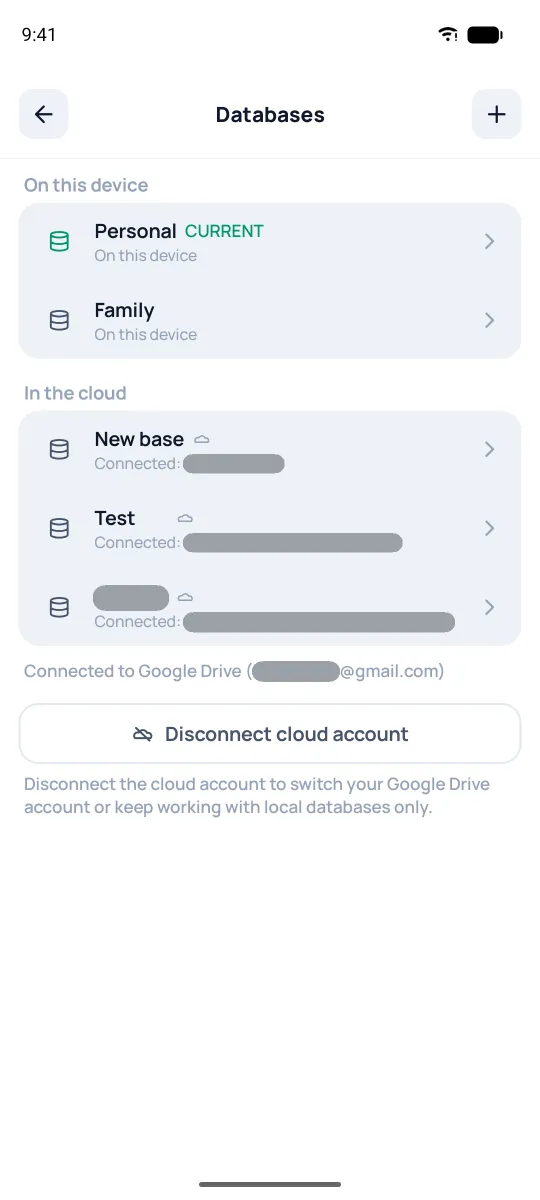
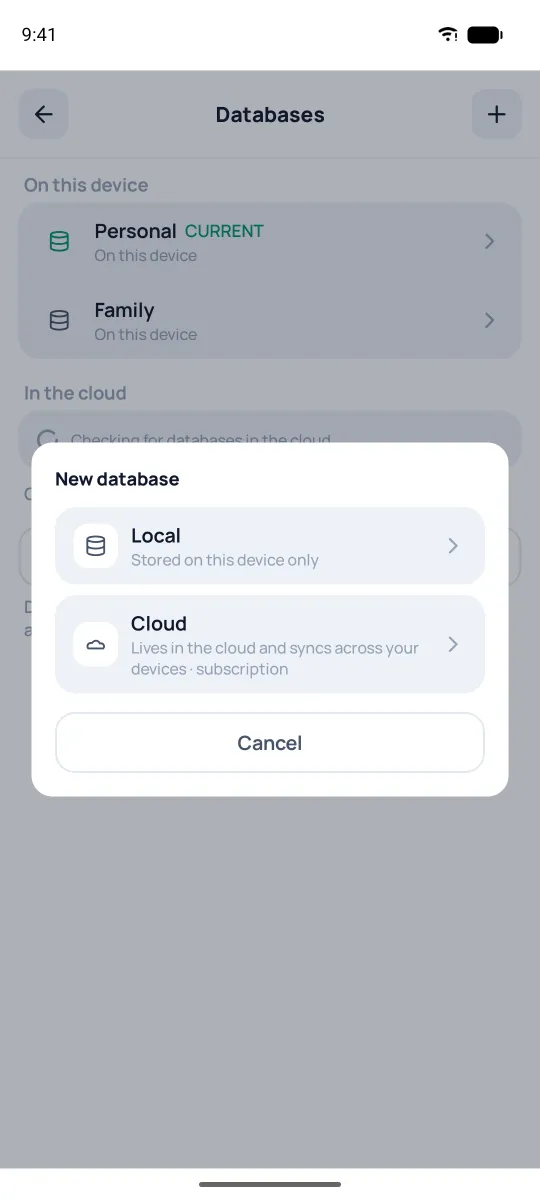
The + button at the top offers the type of the new database: "On this device" is stored only on this device, "Cloud" — in the cloud, synced across devices. Enter a name — and the empty database is ready; for a cloud one, the app also asks about a password (see below). If you started with the demo database, you don't have to wipe it: put your own data in a new database and keep the demo for getting to know the app.
Tapping a database opens the list of actions: "Rename", "Create copy", "Move to cloud", "Delete database". For any database except the current one, "Open" comes first — that's how you switch to another database. "Delete database" wipes it from this device.
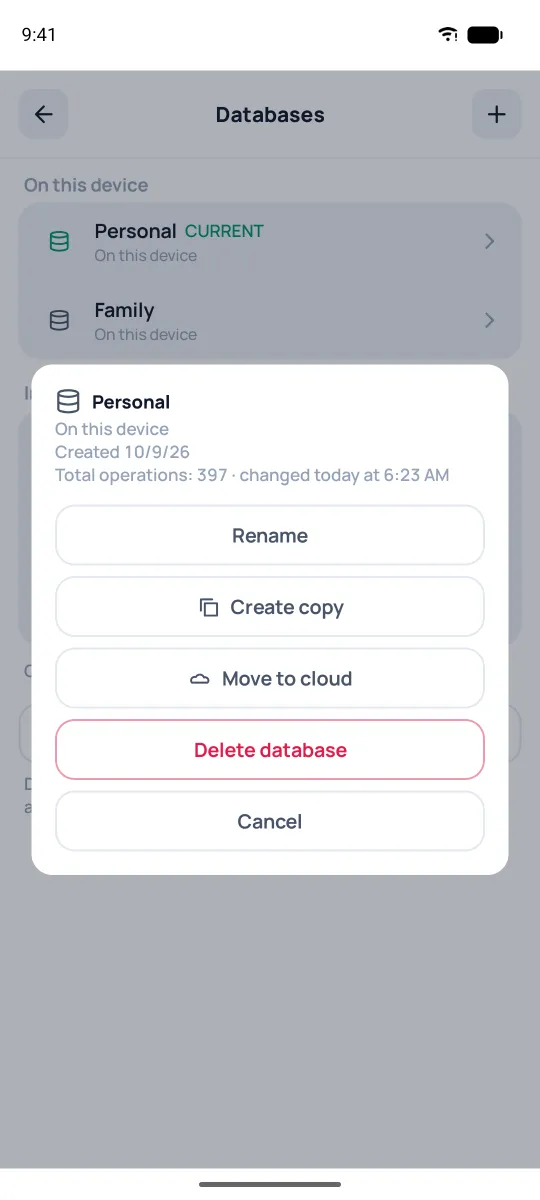
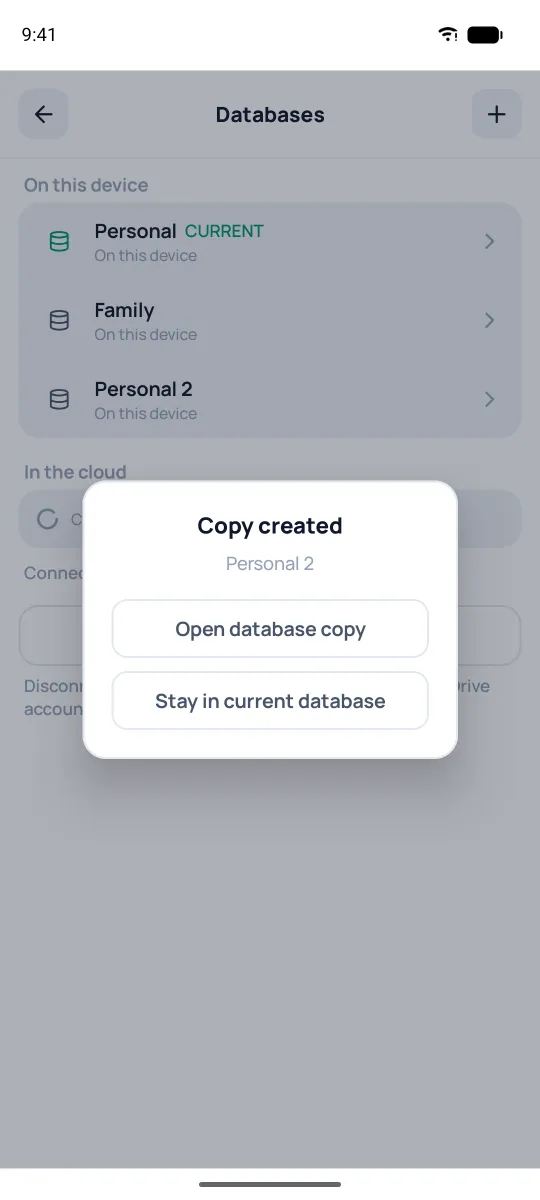
"Create copy" comes in handy before an import or an experiment. With a subscription, the app first asks where to copy — to a local or a cloud database; then it suggests a name — for example, "Personal 2" — and asks whether to open the copy right away. A copy is the whole database, with accounts and settings; from then on the original and the copy live independently, and entries from one never end up in the other.
Cloud database
Tap "Connect Google Drive" (the button is there while the cloud isn't connected) and sign into your Google account. On iPhone, the app first asks where to keep the data in the cloud: Google Drive or iCloud. For now this is just signing into the account: the database itself stays on the device and goes to the cloud in the next step.
Tap the database — "Move to cloud" (with a subscription — see the "Subscription" section below). The app asks whether to protect the database with a password: with one, only you can read the data in the cloud, and you can set it later too. The database moves to the cloud, and a "Saved to cloud" line appears under its name in the list. From then on, whatever you enter on one device shows up on the others — Pigles keeps the database fresh on its own. Without internet, enter records as usual: they'll be sent once you're back online.
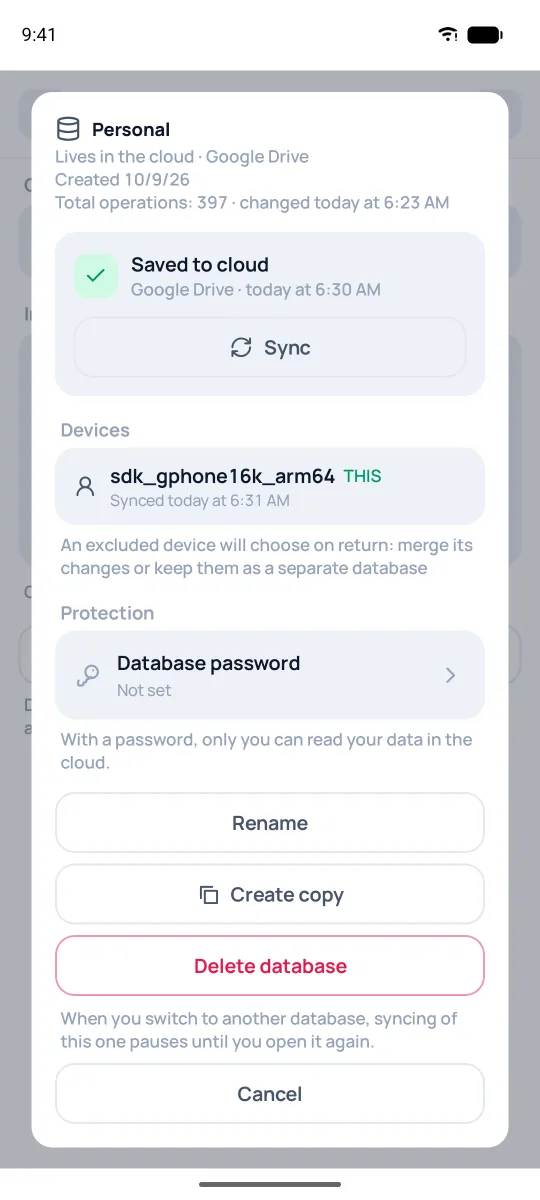
Tapping a cloud database shows when it was saved and a "Sync" button — if you'd rather not wait. The "Devices" block lists all your devices with this database; an unfamiliar device has "Remove". In the "Protection" block, you can set, change, or turn off the database password — the other devices will ask for it once.
On a new device:
- Connect the same account. On an empty database, the app itself says "Your database was found in the cloud" and offers to open it.
- If it didn't — Settings → Databases, the "In the cloud" block, tap the database — "Open".
Without a subscription, you can't open a database from the cloud, but you can download it with the "Download archive (.pig)" button and restore it from the file — like a backup (see the "Backups & moving devices" section). To switch accounts — "Disconnect cloud account" at the bottom of the screen, then connect another one.
Subscription
The subscription gives you:
- Cloud databases — syncing across devices and opening a database in a browser on your computer (for databases in Google Drive).
- Crypto rates — automatically, in balances and reports.
- Access to your cloud databases through the web interface https://pigl.es/app/ — this interface generally matches the wide-screen (tablet) interface of our app and isn't described in this guide. It's meant for comfortable work with cloud databases in desktop mode on your computer.
Without a subscription, everything else works as usual: local databases; the .pig file and restoring from it; the cloud database archive; the currency calculator; manual rates, while rates for regular currencies pull in on their own.
The subscription is managed in Settings → Subscription: "Restore purchases" — after a reinstall or on a new device, "Manage subscription" takes you to the app store. If the subscription has ended, the app shows "Subscription not renewed", and the cloud database stays on the device as a local one — nothing is lost. After renewing, bring it back with the "Move back to the cloud" button.