Export your data
Need to hand your operations to an accountant, crunch some numbers in a spreadsheet, or just save a statement? Export exactly the operations you want to Excel or CSV.
How to export
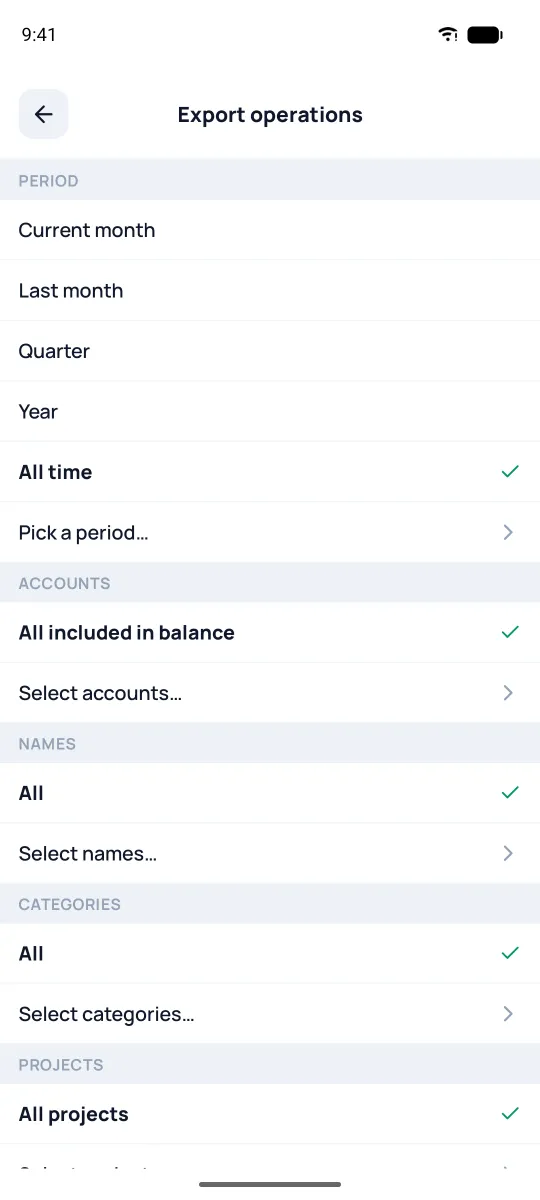
Open Settings → Import/Export/Backups → Export operations. The screen is one big filter: you decide what goes into the export, by any field.
- Period — the current or previous month, quarter, year, all time, or your own dates. The default is All time; need a month — pick it first.
- Accounts — all included in the balance, or the ones you pick.
- Names, categories, projects, tags — all or just the checked ones.
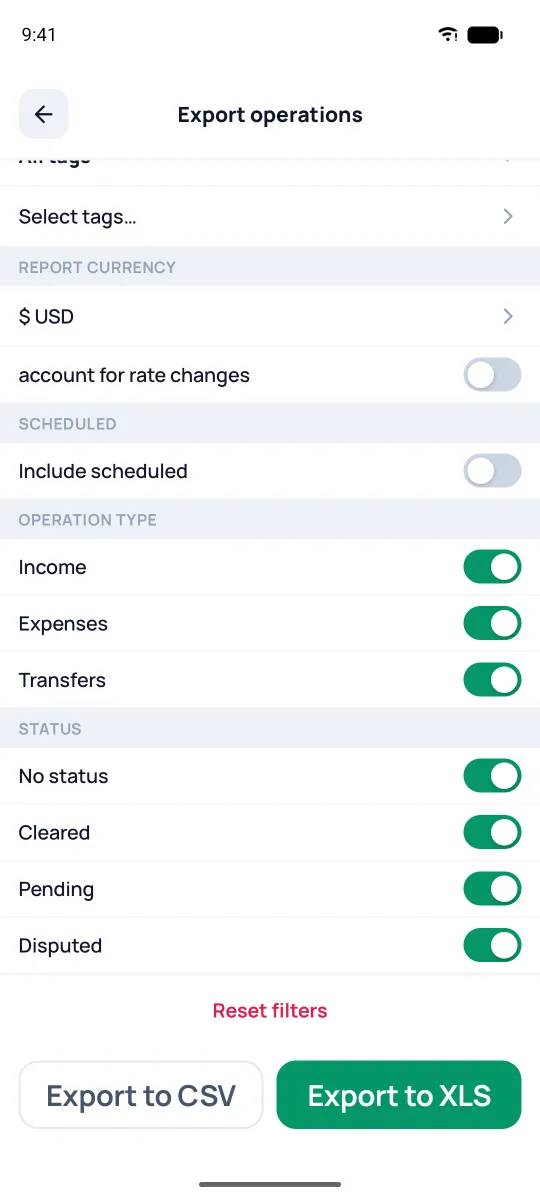
- Report currency — amounts are converted into it, in a separate column. No rate — the cell stays empty, and the reason goes in the "Export note" column. The account for rate changes toggle takes the rate on each operation's date.
- Scheduled — whether to include upcoming planned operations.
- Operation type — Income / Expenses / Transfers. Transfers are included only by this toggle: the category selection doesn't affect them.
- Status — four reconcile toggles (No status / Cleared / Pending / Disputed).
The Reset filters button also turns off Transfers. Need transfers — turn them back on after the reset.
At the bottom: Export to CSV or Export to XLS (Excel). Save or share the finished file. CSV opens in Excel right away too, no setup needed: Cyrillic and amounts read correctly. A split receipt comes out as its parts, transfers are flagged, and amounts show both in the account's currency and in the report currency.
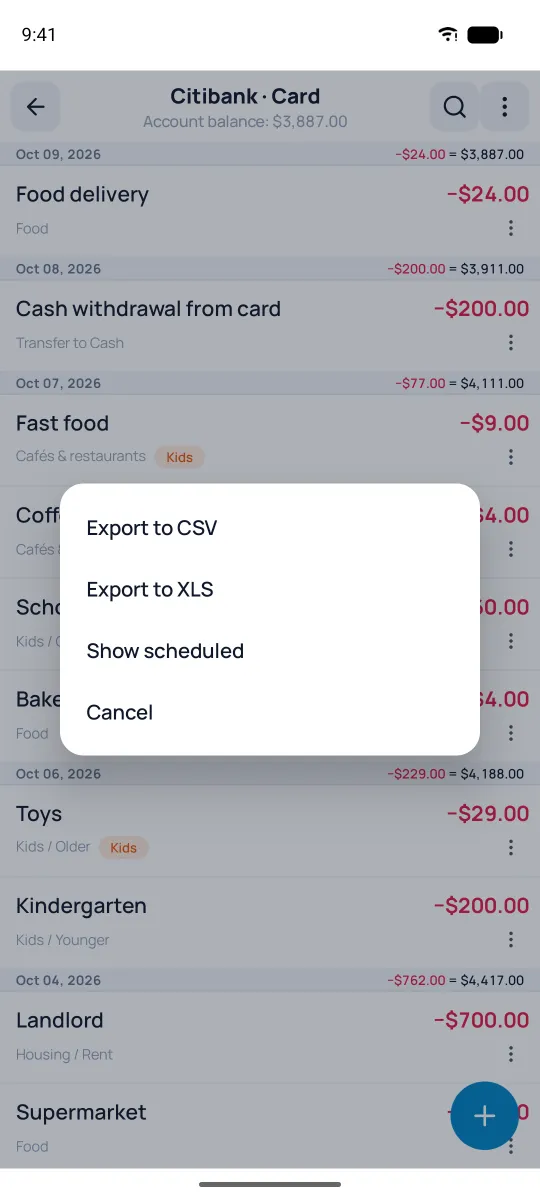
You can export without a filter straight from the account feed or from the All operations screen: the ⋮ icon at the top right opens a menu with Export to CSV and Export to XLS. From the account feed you get all of the account's operations; from the All operations screen — the ones currently shown; scheduled ones don't go into the file.