
Scheduled operations
Paycheck, rent, subscriptions, a loan payment — the stuff that repeats month after month. Describe the rule once, and the app will either remind you or log it for you. You can also see upcoming repeats ahead of time in the account feed and count them in reports and budgets as a forecast.
Your scheduled list
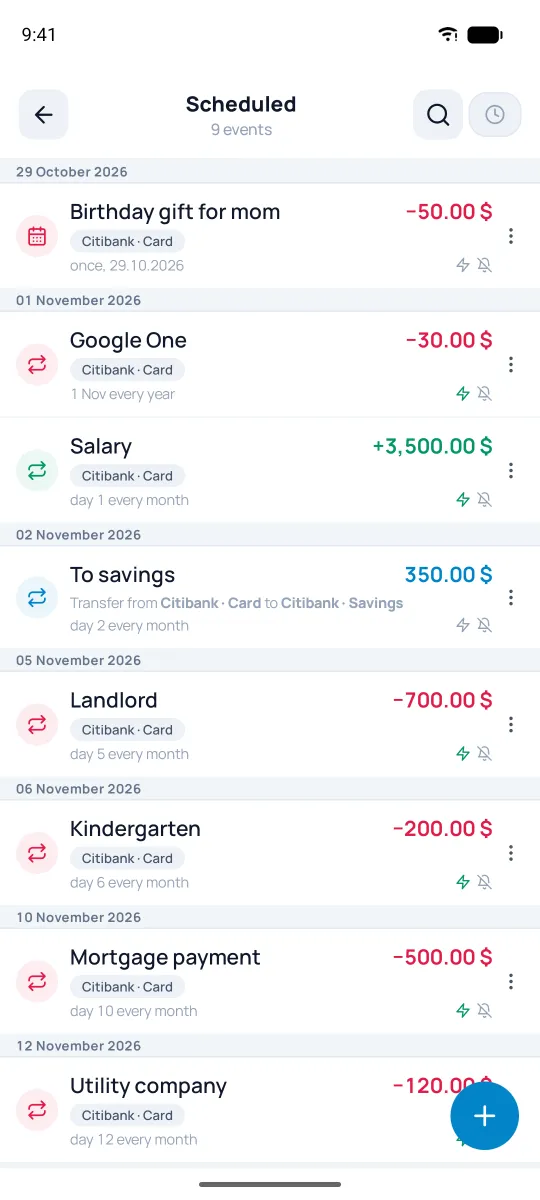
The "Scheduled" section in the menu shows all your series: one row per rule, rows grouped by the date of the next repeat. A green ⚡ icon means auto-post, a green bell means a reminder. Unposted repeats are counted in a red "overdue N" badge, series with no future repeats go to "Finished". The ⋮ icon on a row opens the list of actions.
How to create one
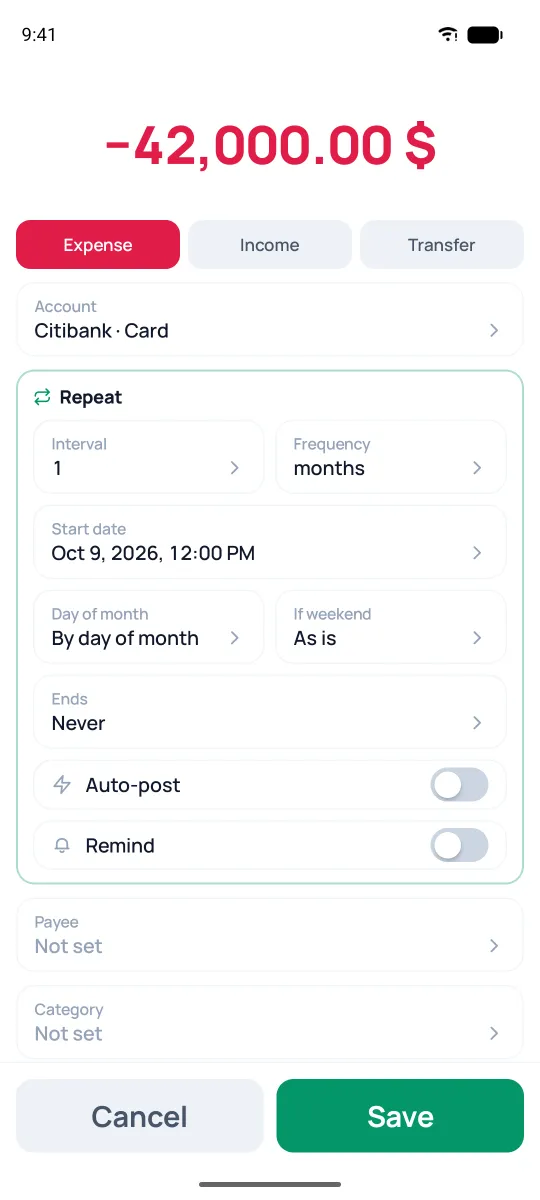
Tap + and fill it out like a regular operation. It all comes down to the "Repeat" block:
- Interval and Frequency — "One time", or every N days, weeks, months, or years ("every 2 months" — interval 2, "months"); weekly ones get days of the week.
- Day of month (for monthly and yearly) — by the day number (the 31st slides to the last day in a short month) or always the last day of the month. Pick the last day — and the start date adjusts itself.
- Start date — the date and time of the first run (12:00 by default).
- If weekend (for monthly and yearly) — shift the run to the nearest business day, back or forward. Business days are Mon–Fri; holidays aren't counted. Handy for payments that don't go through on weekends.
- Ends — never, until a date, or after a set number of runs.
- Auto-post — the app logs the operation on time by itself: on launch and with each new day. Repeats before the series' creation date aren't posted but marked as overdue. Turn auto-post off and due repeats collect in a "Scheduled" block at the top of the account feed — you decide: post, edit, or skip ("Delete", then "This one", the series stays).
- Remind — a reminder when it comes due (see the Reminders section).
Any operation can be turned into a plan: the "Schedule" item in its menu opens the form prefilled.
Reminders
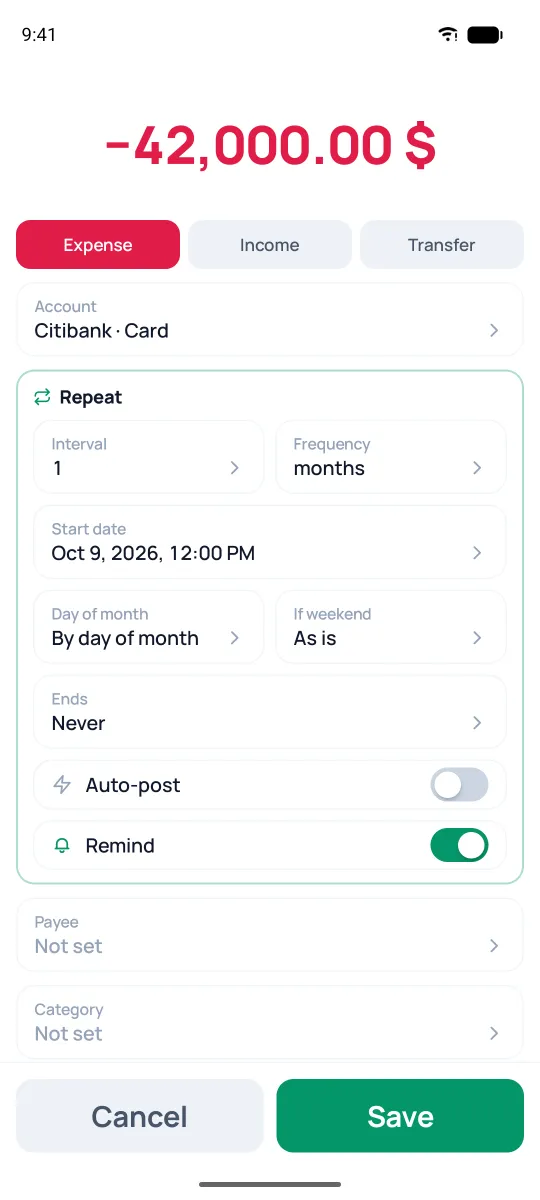
Don't want the app to log the operation itself, but can't afford to miss the payment? In the "Repeat" block, turn off "Auto-post" and turn on "Remind". With auto-post on, this toggle isn't there — there's nothing to remind about.
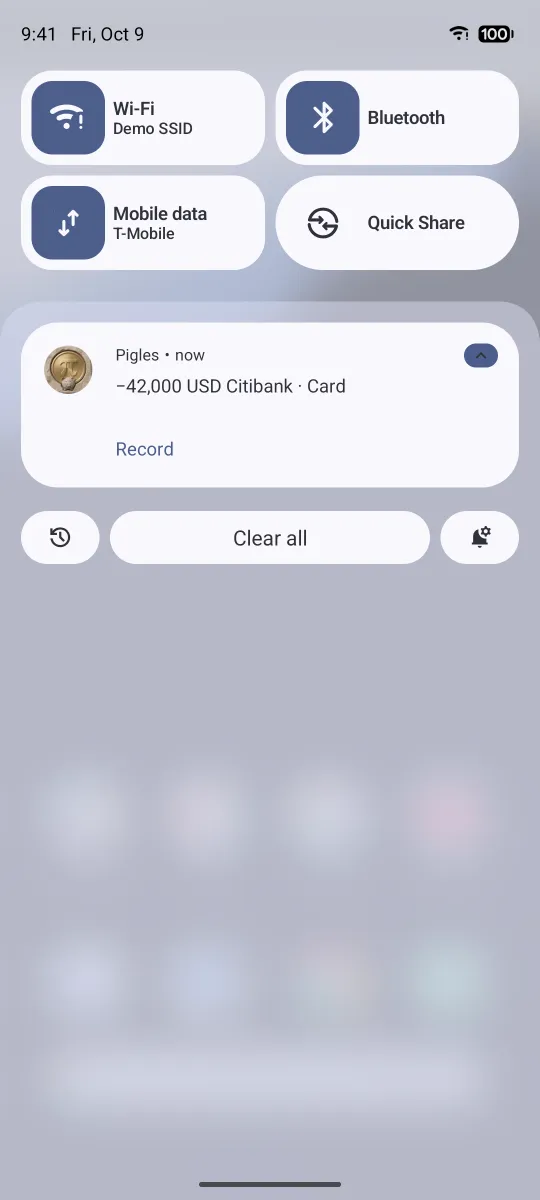
When it comes due, you'll get a reminder with a "Record" button — it opens the operation form prefilled.
If notifications for Pigles are blocked on the device, the app says so under the toggle — "Notifications are turned off in system settings" — and offers to open the settings.
Upcoming repeats in the feed
By default, future plans are hidden in the account feed. You can turn them on from the account's ⋮ menu — "Show scheduled": today, next 3, 7, or 14 days, or up to a chosen date; the same item turns it off. Planned rows in the feed are flagged and don't affect daily totals or the balance — they're just a forecast. When you edit one repeat, the app asks the scope: "This one" or "The whole series".