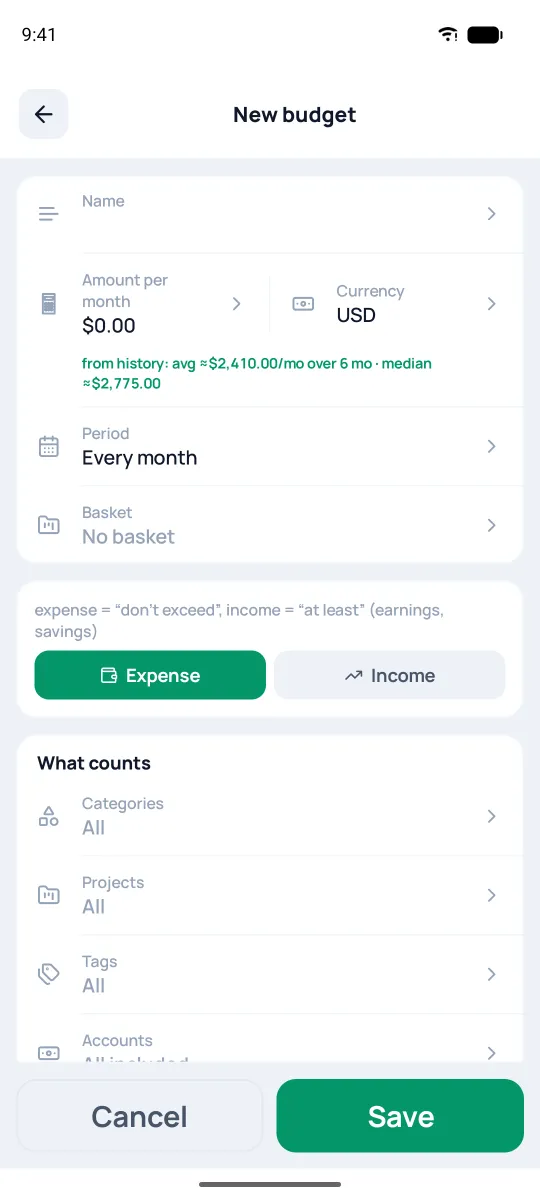
Budgets
Budgets in Pigles are a friendly helper, not a hall monitor: they show how your spending is going and look ahead using your scheduled operations. You can budget just the things you care about — you don't have to cover everything.
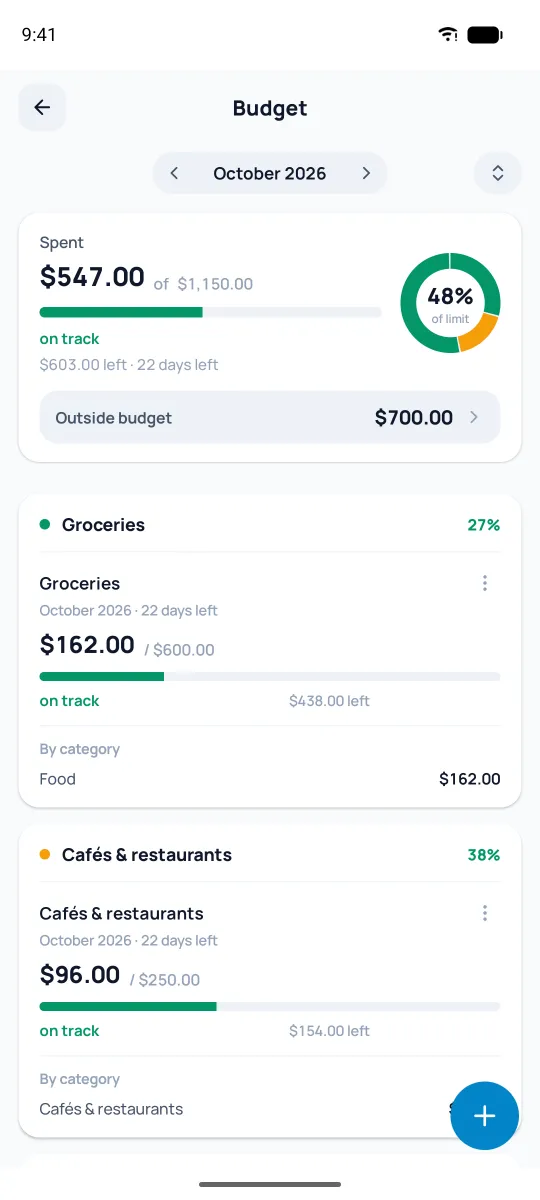
The "Budget" screen
Each budget is a bar: green while you're on track, and red with an "over by" label once you blow past the limit. The "planned +…" label warns that the forecast says the limit will be exceeded; the verdict for a past period is "Within budget". Income budgets flip the verdict — "goal reached", "+… on top", or "so much to go". Up top is a summary for the chosen period: spent out of the limit, what's left, and days to the end; at the bottom is what fell outside all your budgets ("Outside budget"); tap that line to see those operations. Flip periods with the arrows, and tap a budget to see the operations behind it. If you have budgets with different periods, the "monthly", "quarterly", and "yearly" tabs appear. The ⇅ button collapses and expands budgets by category, ⋮ on a budget — "Edit" and "Delete"; deleting a budget doesn't touch operations.
Create a budget
Hit the + at the bottom right. In the form you set:
- Name, amount with currency, and period — "Every month", "Every quarter", or "Every year". The "from history" hint under the amount suggests the average and median over 6 months; tap it to fill in the rounded average.
- Basket — to group a few budgets together, like "Needs", "Wants", and "Savings".
- Type — expense ("don't exceed") or income ("at least", for earnings and savings).
- What counts — categories, projects, tags, accounts. "None" counts nothing — the field says so itself: "Empty — nothing counts". Leave categories on "All" and limit the budget by account, project, or tag — new categories will land in it on their own.
- Roll over remainder and Include scheduled — as you like. A budget can have its own currency — any except crypto.