Reports
Reports pull together the whole picture: how your net worth has grown, where money goes, and what brings it in. The more detail you put into your operations (category, project, tags), the sharper and more useful the breakdowns get.
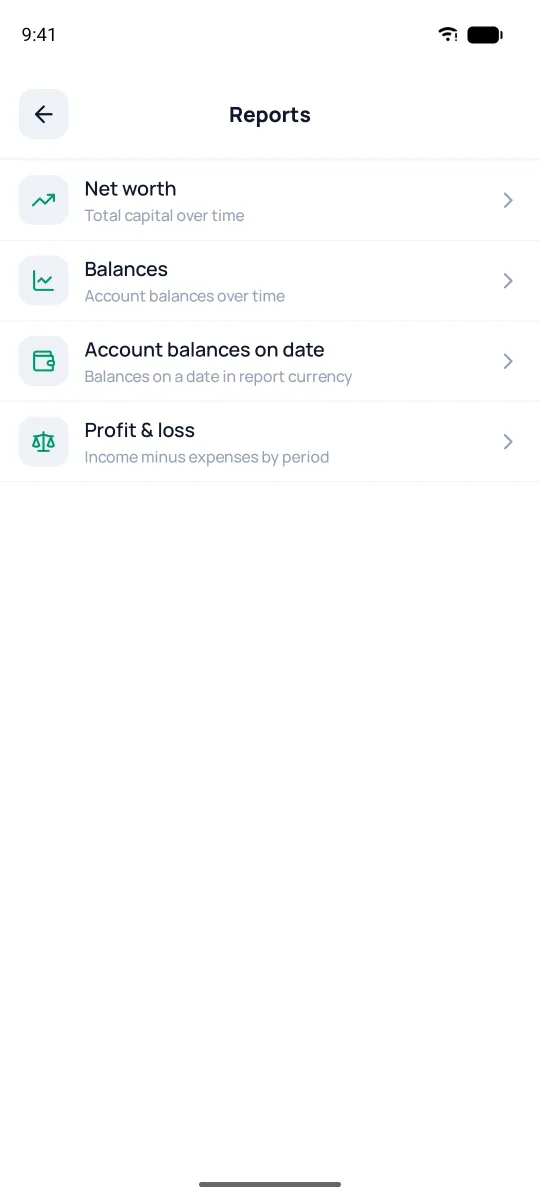
What reports you get
- Net worth — how your total capital has changed over time.
- Balances — the balances of the accounts you pick, plus their total, on a chart; each point is figured at the historical rate for its own date.
- Account balances on date — what you had on a chosen day, in the report currency.
- Profit & loss — income minus expenses. It's one report with breakdowns: Names, Categories, Projects, Tags.
Net worth and balances
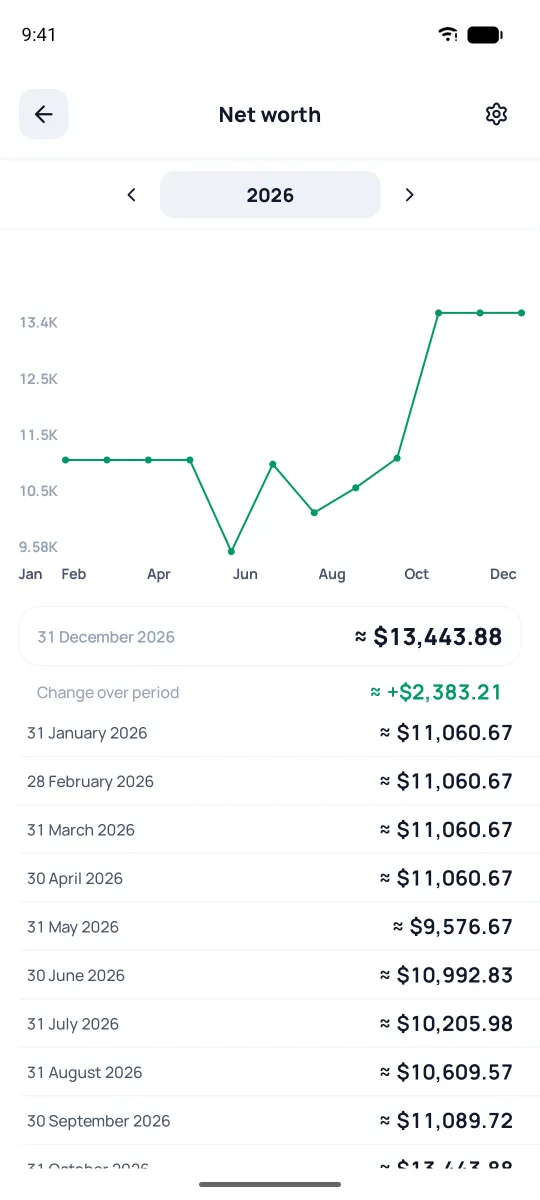
"Net worth" shows a line of your total capital over the period, and under the chart — "Change over period" and values by date. Tap a date row to choose: operations, profit and loss, or balances for that period.
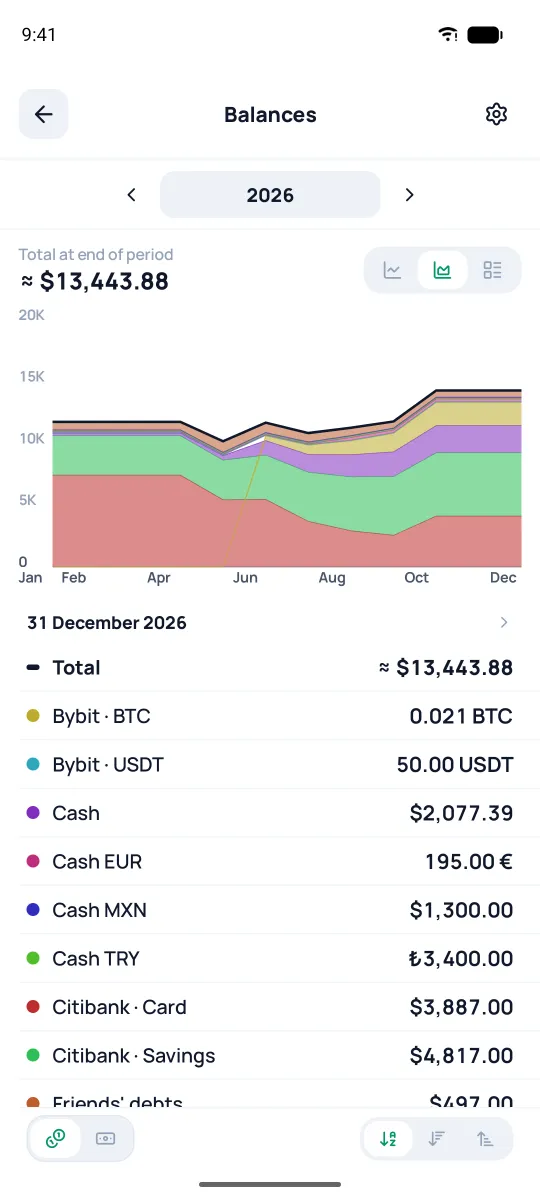
"Balances" shows each account as its own line or area, or just as a table; the buttons above the chart switch the view. In the list under the chart, tap an account to hide it and bring it back, and long-press to hide all the others — handy for looking at one account.
Example: profit & loss
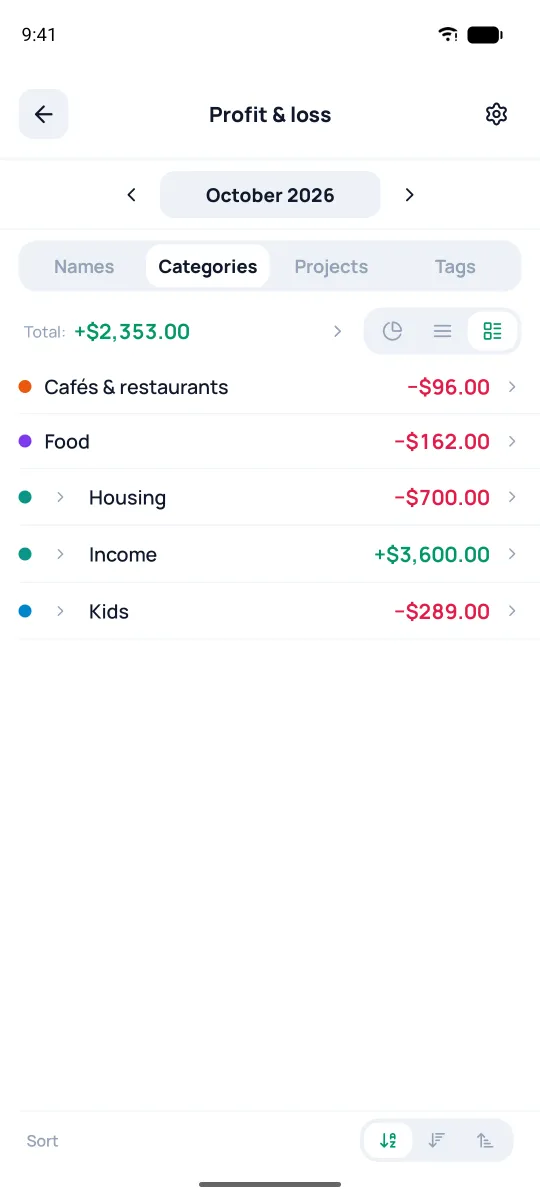
Switch the breakdown up top and the view — donuts, bars, or a list. Direction (expense or income) is decided by the sign of a category's total for the period, so there's one list, with no split. Tap a row to see the operations behind it, tap "Total:" — all operations of the period.
The little arrow on the left or a long-press expands subcategories; a double tap shows only them, and tapping the name up top goes back. Swipe a row — and the "Hide" button removes it from the report.
Rates in reports
Operations in other currencies are converted at the rate on the operation's own date, not today's — so the picture is historically correct. If there's no rate for that date, the app takes the nearest earlier one; if there's none either — the next one or, as a last resort, counts it 1:1 — and flags such a value. The "Update rates" button ("Profit & loss" doesn't have it) pulls in missing rates from the archive; in "Account balances on date", tapping a flagged value opens the rate editor. Crypto rates come with a subscription; without one, the app offers to set the rate by hand (see the Currencies section).
Setting your scope
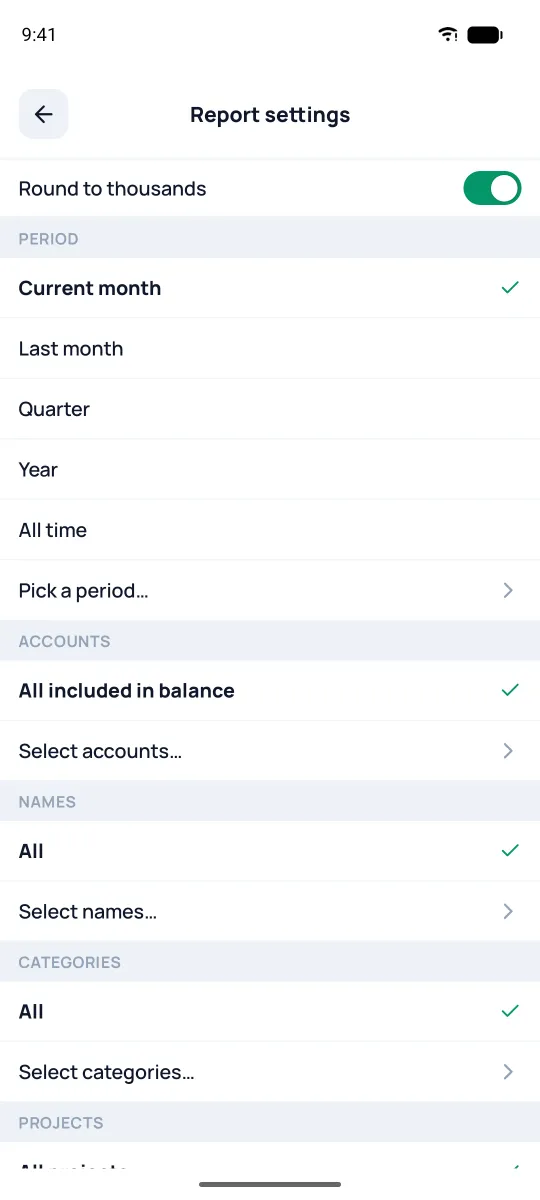
The ⚙ icon up top decides what goes into the report: period, accounts, the report currency with the "account for rate changes" toggle, "Include scheduled", and "Round to thousands" (except in "Account balances on date").
"Profit & loss" and "Balances" have more filters: names, categories, projects, tags, operation type, and reconcile statuses; transfers are added to the report only by the "Transfers" toggle — the category selection doesn't affect them. "Report frequency" (days, weeks, months, years) — in "Net worth" and "Balances". The balance reports have "Hide closed, but keep in total": a closed account stays only in the "Total" row.