Getting started
A couple minutes is all it takes to add your accounts and log your first transaction. From there the app pretty much walks you through the rest.
First launch
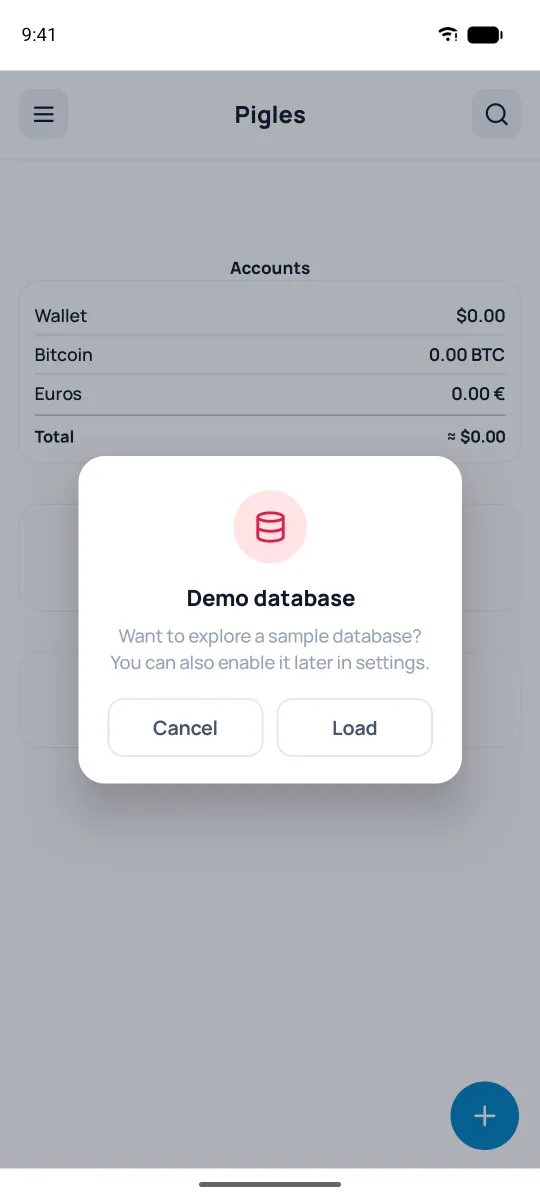
The first time you open Pigles, it'll offer to load a demo database — accounts, categories, and a few months of transactions. Great for poking around. Missed it — the "Load demo database" button at the bottom of Settings will load it. When you're ready to use your own data, just clear the demo out and fill the app with your own: Settings → Delete database data.
Home screen & menu
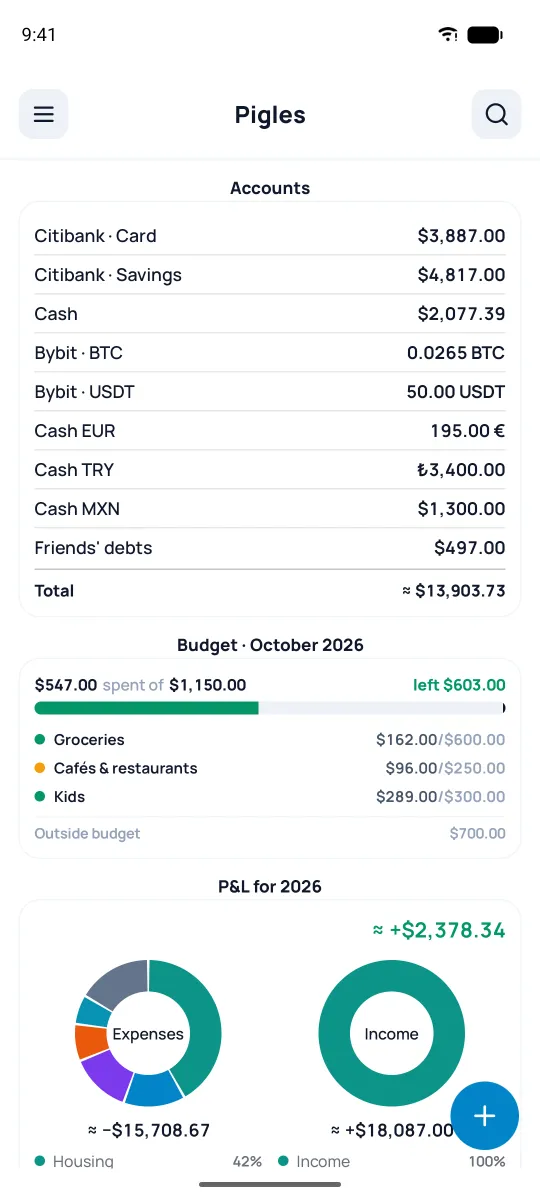
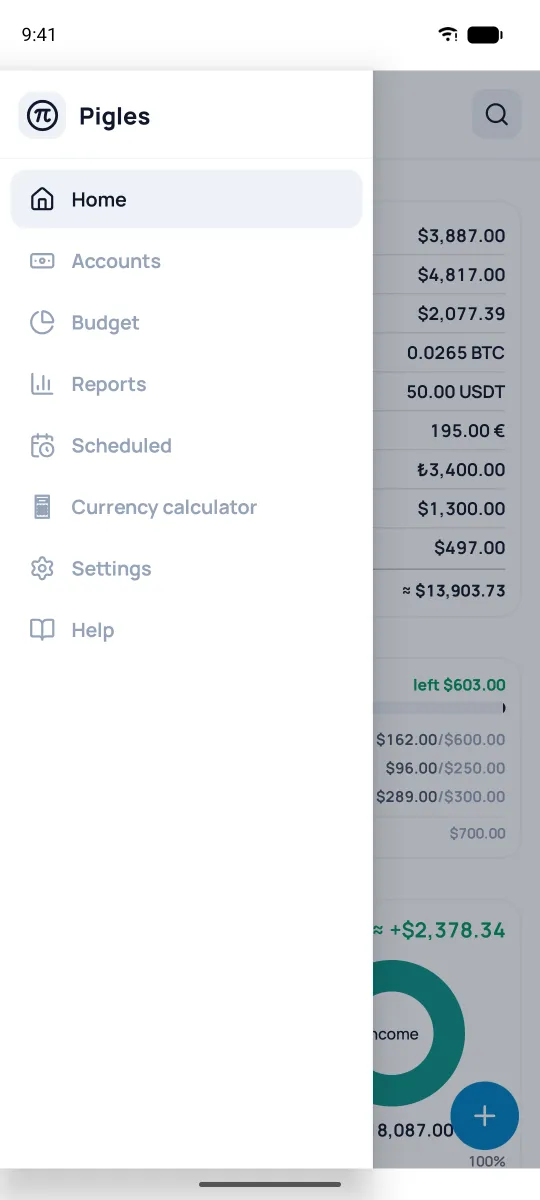
Your home screen is made of widgets: accounts, budget, income & expenses (P&L), recent operations, and more. You can tweak them, turn them off, or reorder them from the settings menu (see the «Widgets» section). You get to decide what shows up. The ☰ button top-left opens the menu with every section, and search 🔍 is on the right.
Add an account or transaction
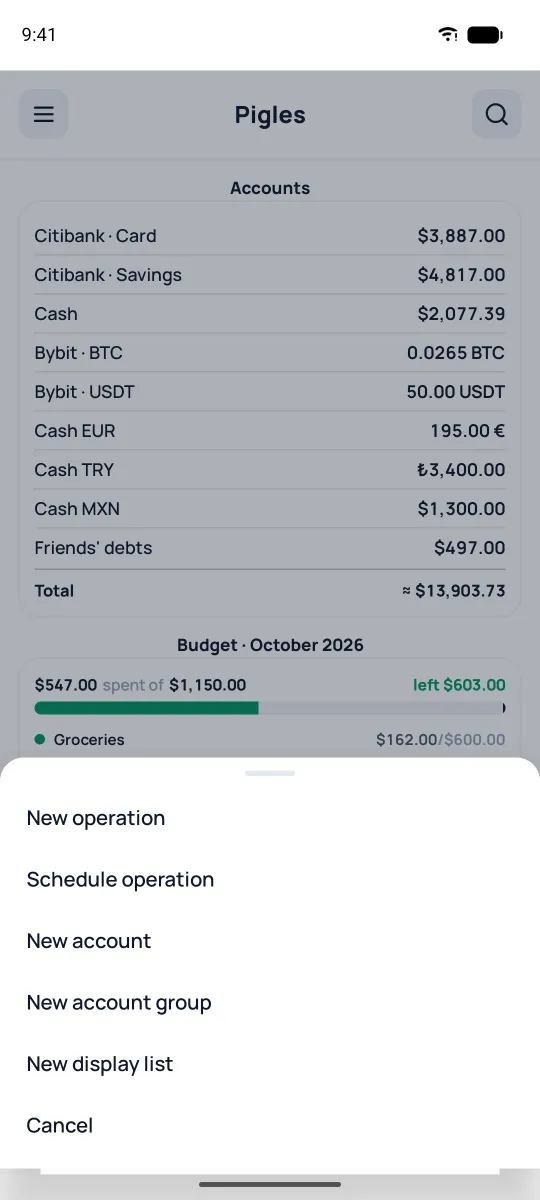
That blue + button at the bottom is where almost everything starts — new transaction, scheduled transaction, account, account group, or display list; a long press on it opens a new transaction right away.
A new account is anything like a card, cash, savings, or a token on a crypto exchange. All you really need is a name, an account type, and a currency — the rest you can fill in later or just leave as-is. Pick the currency right away: once the account has transactions, you won't be able to change it.
Log a transaction
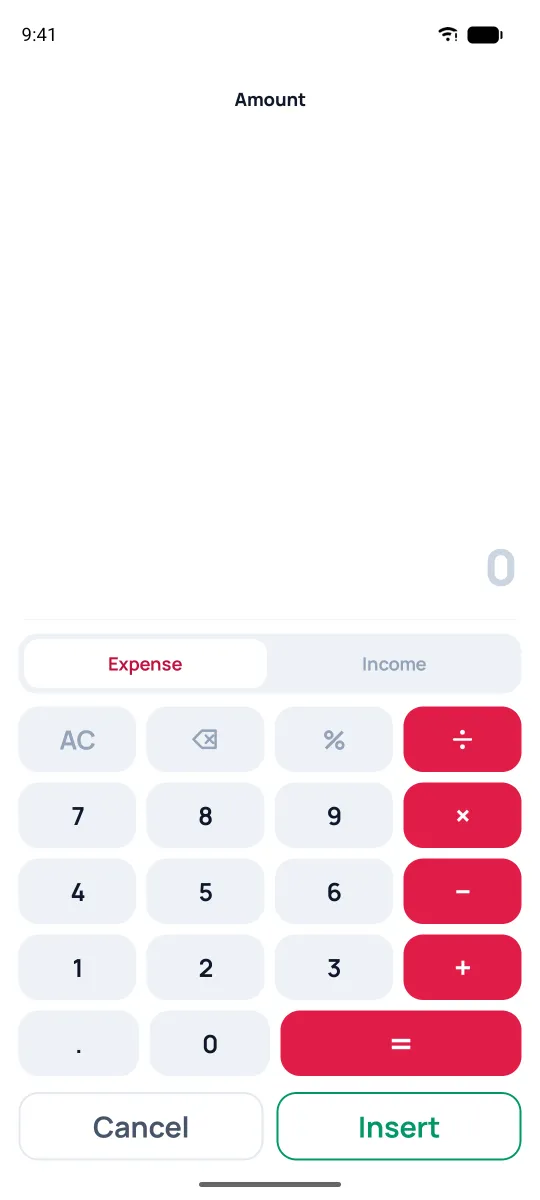
"New operation" opens the calculator: you punch in the amount and pick "Expense" or "Income". You can even do the math right here — add up a couple receipts, no problem. In "Expense" mode the amount already has a minus, so add the second receipt with the "−" button: 100 and 250 give −350.
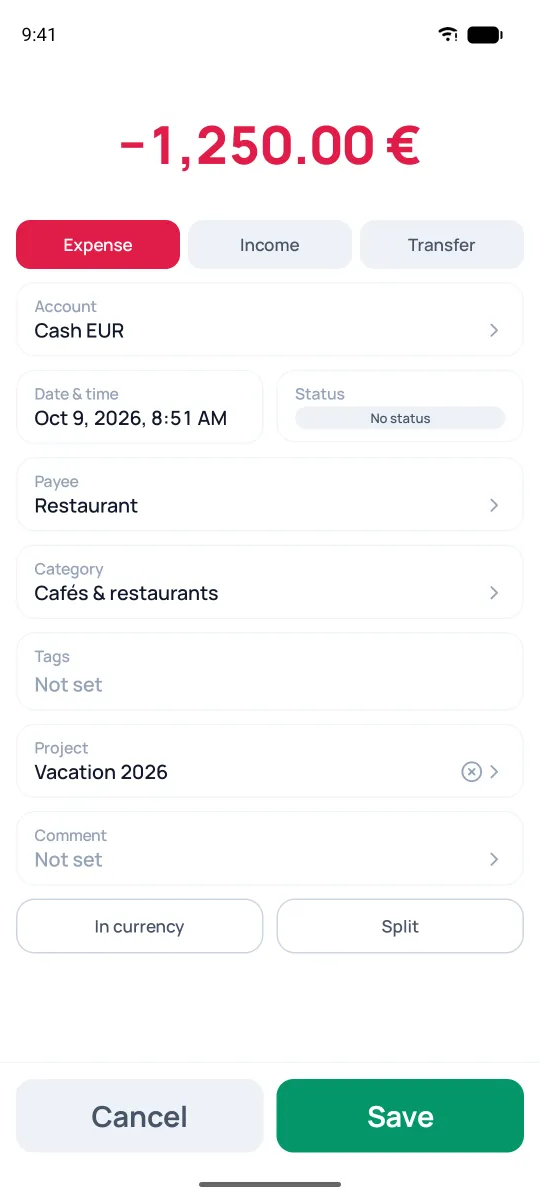
"Insert" opens the transaction card. Here you set the amount, the type (Expense/Income/Transfer), and pick the account, date and time, payee or payer, and category — plus, if you feel like it, tags, a project, and a comment. When you pick a payee, its last category and project fill in automatically. You can skip the rest, but the more detail you add, the better your reports will be down the road.
Categories & payees, right from the form
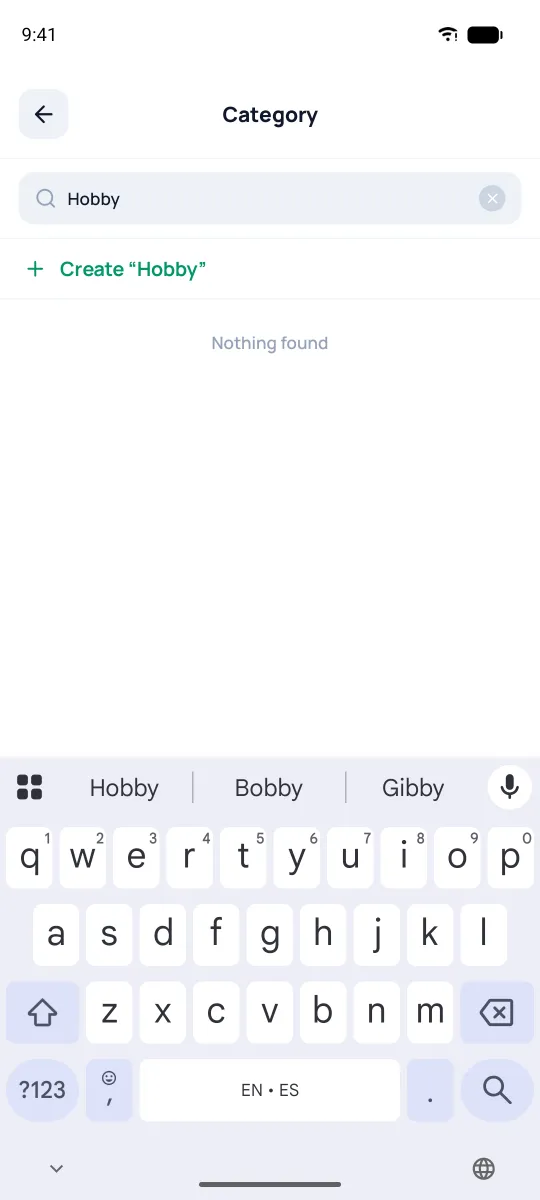
No need to set up lists ahead of time. Tapping the "Category" or "Payee" field opens a searchable list; type a name — if it doesn't exist yet, you'll see a "Create “…”" row pop up. A payee gets created right away, while a category opens a form with that name. Same deal for projects; tags are added with the + button at the top of the list. Whatever you make gets saved automatically, so it's ready to go next time.
Split a receipt
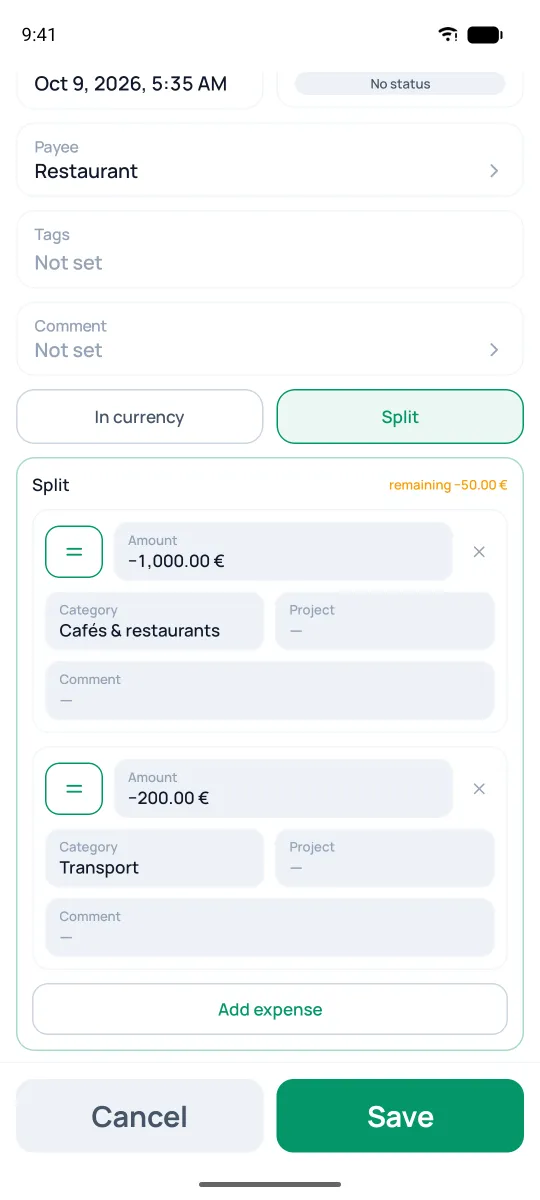
One receipt often covers a bunch of stuff — groceries, household, a toy for the kid. Tap "Split" and break the total into parts, each with its own category and comment. The "=" button on a part fills it with the remainder — whatever hasn't been allocated yet. Reports count every part correctly, and your account still shows one clean transaction.
Transaction feed & search
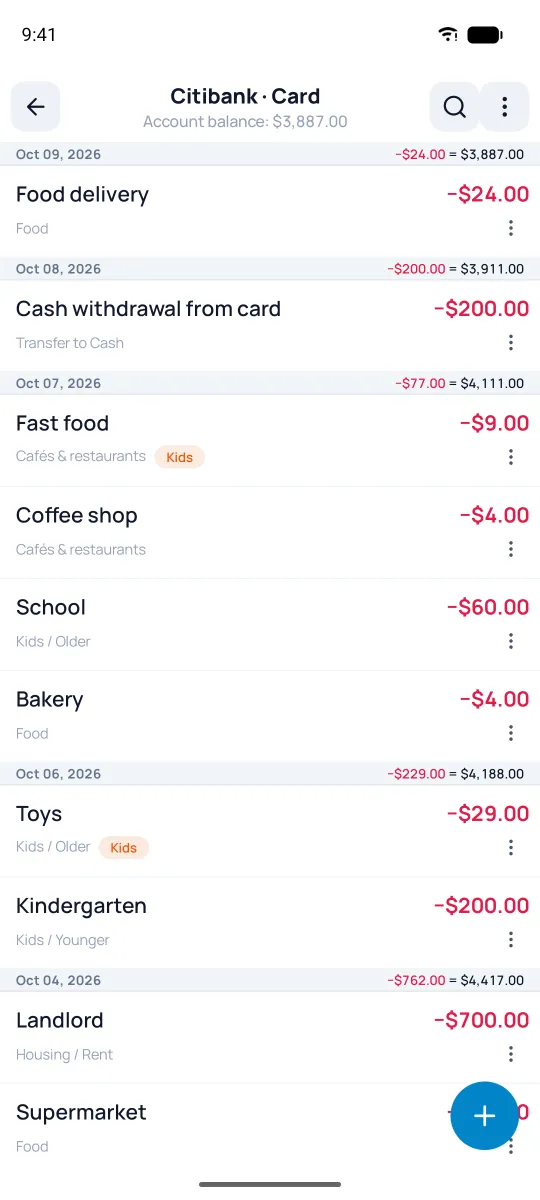
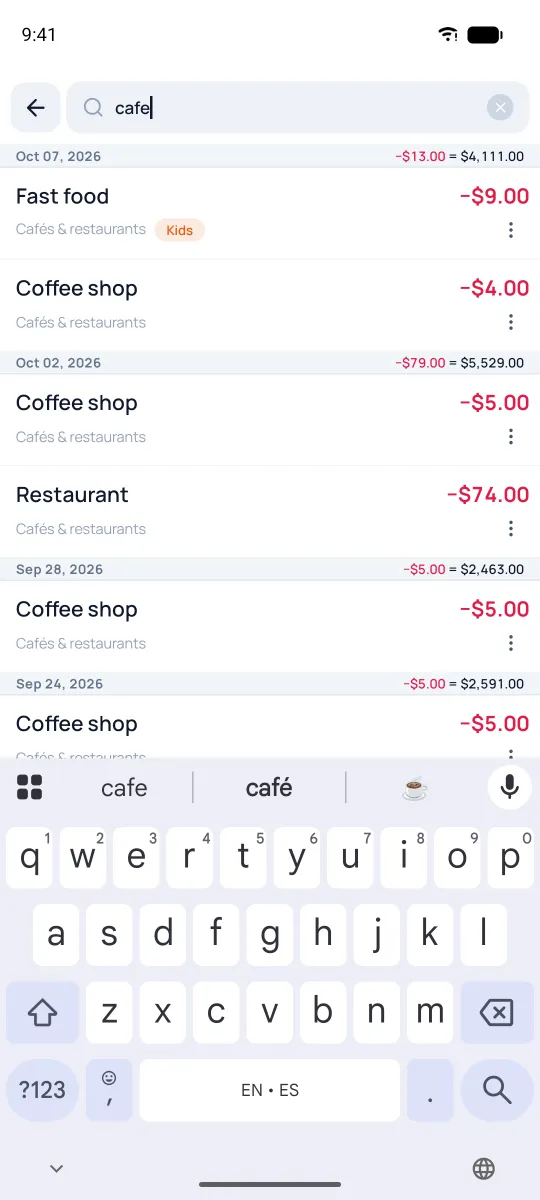
Tap an account to open its feed: transactions by day, with a daily total and end-of-day balance. The ⋮ icon on a transaction — or a long press on it — opens its actions. The 🔍 icon searches by name, category, or amount — super handy when you need to track down one specific purchase.